How to Make an Invoice in Google Docs? Examples + Template

Table of Contents
- Method 1: Copy our Google Docs invoice template
- Method 2: Create an invoice in Google Docs from scratch
- Method 3: Use Google Sheets for invoice calculations
- How to calculate invoice totals in Google Docs
- How to save, number, and reuse Google Docs invoices
- How to send an invoice from Google Docs
- When to stop using Google Docs for invoicing
- FAQs about Google Docs Invoice Templates
You can make an invoice in Google Docs by copying a ready-made template or creating your own document from scratch. Both methods let you add your business details, list products or services, set payment terms and share the finished invoice with a customer.
The quickest option is to start with a free Google Docs invoice template. If you prefer to design your own layout, Google Docs also lets you build an invoice using tables and text.
For invoices with multiple calculations, Google Sheets may be more practical because it can automatically update totals when quantities or rates change.
This guide covers:
- How to create an invoice using a free template
- How to build an invoice from scratch
- How to calculate totals and organize your invoices
- How to save, share and send invoices to customers
Method 1: Copy our Google Docs invoice template
Using a template is the fastest way to create an invoice without setting up the layout yourself. You can replace the sample information, adjust the design and save a copy for future jobs.
Step 1: Open the Google Docs invoice template
Visit Invoice Fly’s free Google Docs invoice template page.
Choose the template you want to use and open it in Google Docs. Sign in to your Google account if prompted.
Step 2: Make a copy
Once the template is open, create your own editable version.
- Click File in the top menu.
- Select Make a copy.
- Give the document a name and choose where to save it in Google Drive.
- Click Make a copy to open your version.
If the template page provides a direct Make a copy link, follow that instead.
Your copy can be edited without changing the original template.

Step 3: Customize the invoice
Replace the sample text with your own billing information.
Include:
- Business details: Name, address, email and phone number.
- Customer details: Customer name and billing address.
- Invoice details: Unique invoice number, invoice date and due date.
- Products or services: Clear descriptions of the work or items supplied.
- Charges: Quantities, hourly rates or unit prices, and amounts.
- Payment terms: Total amount due, payment deadline and instructions for paying.
You can also add your logo and adjust the fonts or colors to match your business.
Check every field before sending, particularly the customer’s details, calculations and payment information.
Step 4: Save and download the invoice
Google Docs saves your changes automatically to Google Drive.
To download a copy:
- Click File > Download.
- Select PDF Document (.pdf).
- Save the file to your device.
You can then attach the PDF to an email or share a view-only link to the Google Doc.
Keep an editable copy in Google Drive so you can reuse the layout for future invoices.

Method 2: Create an invoice in Google Docs from scratch
If you want more control over the layout, you can create your own invoice in a blank Google Docs document.
Step 1: Create a blank Google Docs document
Go to Google Docs and select Blank document.
Rename the file by clicking Untitled document in the upper-left corner. Use a descriptive name such as Invoice_Template.
Step 2: Add your business information
At the top of the document, enter your business name and contact details.
Include your:
- Business or trading name
- Address
- Phone number
- Email address
Add a logo if you have one using Insert > Image.
Place the word INVOICE near the top so the purpose of the document is immediately clear.
Step 3: Add the customer details
Create a separate section for the customer.
Include their name, business name if applicable, and billing address. You can also add a contact email or reference number if the customer requires one.
Label this section Bill to to distinguish it from your own business details.
Step 4: Insert the invoice number and dates
Every invoice should have a unique reference number.
Add:
- Invoice number: For example, INV-104
- Invoice date: The date you issue the invoice
- Due date: The date payment is expected
A consistent numbering system makes invoices easier to find and helps prevent duplicate references.
You can learn more about choosing an invoice number and keeping your records organized.
Step 5: Create an invoice table
Use a table to organize your products or services and their prices.
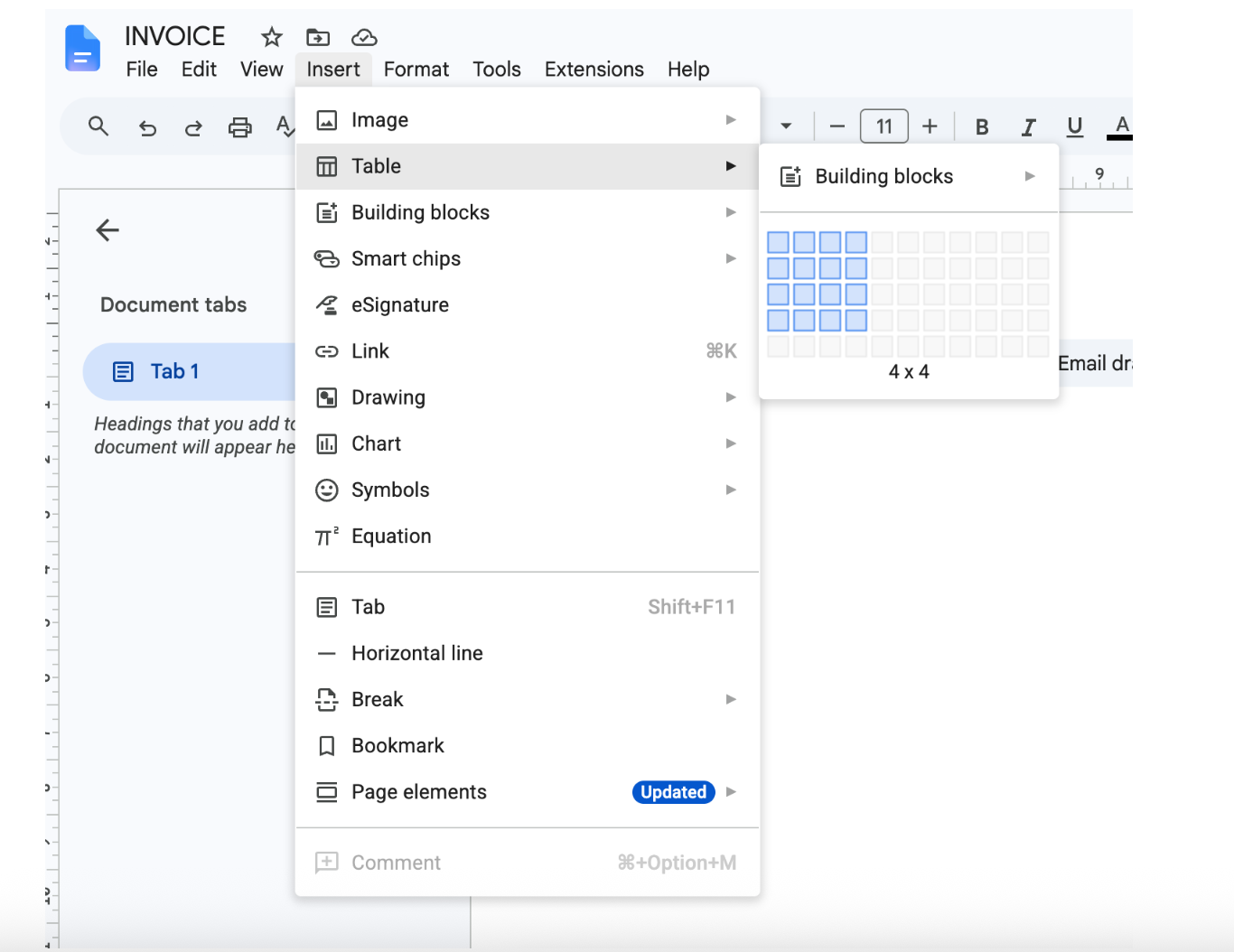
- Place your cursor where the table should appear.
- Click Insert > Table.
- Select four columns and enough rows for your items.
- Enter the column headings and billing details.
A simple invoice table looks like this:
Description | Quantity | Rate | Amount |
|---|---|---|---|
Plumbing service call | 1 | $75 | $75 |
Faucet installation labor | 2 hours | $85 | $170 |
Replacement parts | 1 | $55 | $55 |
Add more rows as needed. Keep descriptions specific so customers can understand what they’re being charged for.
Step 6: Add totals and payment terms
Below the table, show the amount the customer needs to pay.
Include:
- Subtotal of all items
- Applicable sales tax
- Any discounts or deposits
- Final total amount due
Google Docs tables don’t work like Google Sheets spreadsheets, so calculate and check the amounts yourself.
Finish with your payment instructions, accepted payment methods and due date.
For guidance on setting deadlines, see our guide to invoice payment terms.
Step 7: Review and format the invoice
Before sending, check that the invoice is accurate and easy to read.
Use consistent fonts, clear headings and enough spacing between sections. Make the final amount due easy to find.
Review the invoice number, customer information, rates, calculations and payment details.
You can also select File > Print to check how the document will look on a page.
Once you’re happy with the layout, save a clean copy to use as your starting template.

Method 3: Use Google Sheets for invoice calculations
Google Docs works well for invoices with a few straightforward charges. However, Google Sheets invoice templates are often more useful when an invoice involves several calculations.
Google Sheets lets you:
- Calculate line-item amounts using formulas.
- Automatically update totals when quantities or rates change.
- Calculate subtotals, taxes and discounts.
- Reduce errors caused by manually entering amounts.
For example, a formula such as =B2*C2 multiplies a quantity in cell B2 by a rate in cell C2.
If you regularly invoice customers for different quantities, hourly rates or materials, using Sheets can save time.
How to calculate invoice totals in Google Docs
When creating an invoice in Google Docs, you’ll need to calculate the amounts before entering them into your document.
Start by multiplying each item’s quantity by its rate. Add those amounts together to find the subtotal, then apply any relevant taxes, discounts or deposits.
Here’s an example for a plumbing job:
Description | Quantity | Rate | Amount |
|---|---|---|---|
Plumbing service call | 1 | $75 | $75 |
Faucet installation labor | 2 hours | $85 | $170 |
Replacement parts | 1 | $55 | $55 |
Subtotal | $300 | ||
Example tax (5%) | $15 | ||
Total amount due | $315 | ||
The 5% tax rate is illustrative. Actual tax treatment depends on the products or services and applicable local rules.
The calculation works as follows:
- Line-item amounts: Multiply each quantity by its rate.
- Subtotal: Add $75 + $170 + $55 = $300.
- Tax: Calculate 5% of $300 = $15.
- Discounts or deposits: Subtract any applicable amounts.
- Total due: Add tax to the subtotal and subtract any discounts or deposits.
In this example, the customer owes $315, assuming no discounts or deposits.
Google Docs tables help present these figures clearly, but they don’t provide the same spreadsheet formula functionality as Google Sheets. If you change a quantity or rate, remember to recalculate the affected amounts.
How to save, number, and reuse Google Docs invoices
Keeping your invoices organized makes it easier to find past records, follow up on payments and prepare new invoices.
Save a reusable template
Keep one clean invoice document in Google Drive and make a new copy for each customer or job.
To reuse it, open your saved template and select File > Make a copy. Update the details in the new document rather than editing your original.
Google Docs automatically saves changes to Drive while you’re online, so there’s no need to save manually.
Use a consistent invoice numbering system
Give each invoice a unique number, such as INV-101, INV-102 and INV-103.
Update the number whenever you create a new invoice, and keep a simple record of which numbers you’ve used.
Name your invoice files clearly
Include the invoice number, date and customer name in each filename.
For example:
Invoice104_0225_Client
You can also create separate Google Drive folders for customers or financial years.
Free Google accounts vs Google Workspace
You can create, edit, store and share Google Docs invoices with a free Google account.
Google Workspace offers additional business and administrative features, but you don’t need a paid subscription to create invoices. Some organizational template-gallery features are specific to eligible work or school accounts.
How to send an invoice from Google Docs
Once your invoice is complete, you can send it as a Google Docs link or download it as a PDF.
Method 1: Share a Google Docs link
- Open the finished invoice and click Share.
- Enter your customer’s email address.
- Change their permission to Viewer.
- Click Send.
Viewer access lets the customer read the invoice without editing it. You can also use Copy link to share the document, provided the access settings allow the recipient to open it.
Avoid giving customers Editor access to your original invoice.
Method 2: Download and email a PDF
- Open the invoice in Google Docs.
- Select File > Download > PDF Document (.pdf).
- Attach the downloaded PDF to an email.
- Send it with a short message explaining the amount due and payment deadline.
PDFs are useful because they preserve the invoice layout and can be opened without giving customers access to your Google Drive.
When to stop using Google Docs for invoicing
Google Docs can work well for occasional invoices, especially if you already use Google Drive to manage your documents.
However, creating and tracking invoices manually can become time-consuming as your customer list grows.
Task | Google Docs | Dedicated invoicing software |
|---|---|---|
Invoice creation | Edit documents manually | Structured invoice creation |
Payment tracking | Maintain separate records | May show invoice payment statuses |
Payment reminders | Follow up manually | May send automatic reminders |
Online payments | Add separate payment instructions or links | May offer integrated payment options |
Invoice duplication | Copy an existing document | May offer invoice duplication |
Avoiding overwrites | Original files can be edited accidentally | Structured records can reduce manual errors |
If you’re sending only a few invoices, a Google Docs template may be all you need.
For regular invoicing, Invoice Fly can help you create invoices, monitor payment statuses and send reminders without managing everything through separate documents.
You can also create an invoice using the free invoice generator or start with a Google Docs invoice template.