Free templates for every job, in any format
Find invoice, estimate, quote, receipt, and other business templates in Word, Excel, PDF, Google Docs, and Google Sheets. Choose a design, add your details, and make it your own. Explore 69 free Invoice Fly template pages for different jobs and industries.

Invoice templates
Choose an invoice template for your trade, add your details, and download it in the format you already use.
Browse all 32 invoice templates
Pick your format
Or pick your industry 22
- Auto repair invoice template
- Catering invoice template
- Cleaner invoice template
- Construction invoice template
- Consulting invoice template
- Contractor invoice template
- Electrical invoice template
- Handyman invoice template
- HVAC invoice template
- Landscaping invoice template
- Lawn care invoice template
- Mechanic invoice template
- Painting invoice template
- Photography invoice template
- Plumbing invoice template
- Pressure washing invoice template
- Property management invoice template
- Roofing invoice template
- Self-employed cleaner invoice template
- Therapy invoice template
- Tree removal invoice template
- Trucking invoice template
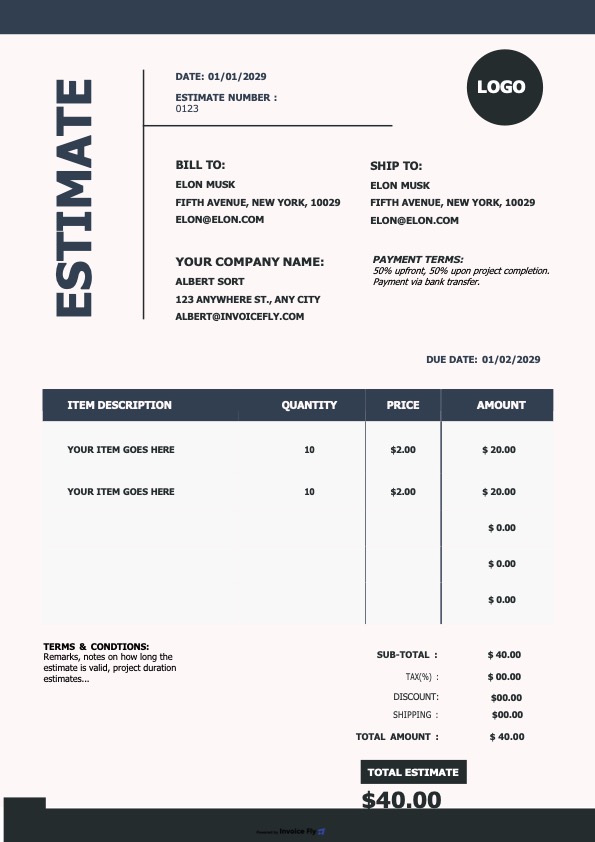
Estimate templates
Price the job before you start with an estimate template made for your industry.
Browse all 16 estimate templates
Pick your format
Or pick your industry 11
- Auto repair estimate template
- Cleaning estimate template
- Construction estimate template
- Contractor estimate template
- Electrical estimate template
- Handyman estimate template
- Landscaping estimate template
- Painting estimate template
- Plumbing estimate template
- Pressure washing estimate template
- Roofing estimate template
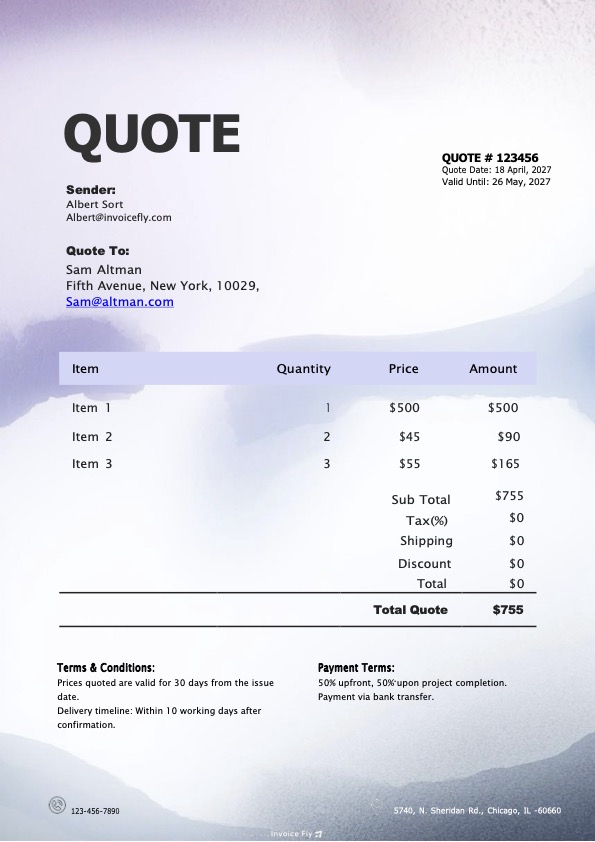
Quote templates
Set out your fixed price and terms in a quote your client can review and approve, in five formats.
Browse all 6 quote templates
Receipt templates
Record payments for cash, deposits, donations, and service work with a ready-to-use receipt.
Browse all 7 receipt templates
More business templates
Prepare proforma invoices, organize work with work orders, and send payment and appointment reminders to keep clients informed and jobs moving.
No templates match “”
Try a document, an industry or a format instead. These searches always find something:
Prefer to fill it out online?
Skip the blank file. Enter your details into a free Invoice Fly generator and download a finished PDF, ready to send.
Get every document right with Invoice Fly Academy
Learn what to include in estimates, invoices, quotes, and receipts, when to send each document, and how to get paid faster. Find practical, step-by-step guidance for every stage of the job.

Frequently Asked Questions About Free Templates
Find answers to common questions about choosing, downloading, and customizing Invoice Fly’s free business templates.
Visit the Help CenterAre Invoice Fly’s templates really free?
Yes! All 69 template pages on Invoice Fly are free to access and download. You don’t need to create an account, sign up, or pay a subscription to use them.
You can browse templates for invoices, estimates, quotes, receipts, proforma invoices, work orders, payment reminders, and appointment reminders. Choose a design that suits your business, download it in your preferred format, and add your own details. Whether you’re preparing an invoice for a completed job or putting together an estimate for a new client, you can start with a ready-made layout instead of creating a document from scratch.
Which template format should I choose?
Choose a format based on how you prefer to create, edit, and share your business documents. Invoice Fly offers templates in Word, Excel, PDF, Google Docs, and Google Sheets, so you can use the software you’re already familiar with.
Here’s when each format works best:
- Word: Choose Word when you need to edit descriptions, update client information, change your business details, or adjust the document layout.
- Excel: Use Excel for itemized documents with quantities, unit prices, materials, labor, and totals. It’s particularly useful when you regularly work with numbers and want to organize costs in a spreadsheet.
- PDF: Choose PDF when you want to preserve the document’s layout for printing, sharing, or keeping a consistent copy of your paperwork.
- Google Docs: Use Google Docs to edit your document online, update text and details, and access your file through your Google account.
- Google Sheets: Choose Google Sheets to organize itemized information, quantities, prices, and calculations in an online spreadsheet.
For example, a contractor preparing a detailed estimate with labor and material costs might prefer Excel, while someone who needs a simple, professional invoice to print or share might choose PDF.
Get started with an Invoice Template in Word, an Excel Invoice Template, or a PDF Invoice Template.
Can I find a template for my industry?
Yes! Invoice Fly offers invoice templates for 22 industries and estimate templates for 11 industries, along with quote and receipt templates for common business needs.
You can find templates for trades and services such as cleaning, landscaping, construction, plumbing, electrical work, roofing, and other types of contracting. Each industry has different billing requirements, so choosing a relevant layout can make it easier to describe your services, list materials, include labor charges, and present costs clearly to your clients.
To find the right document, use the search bar at the top of the page to look for your industry or browse the By Industry collections under each document category.
Can’t find a template for your specific trade? Start with a Blank Invoice Template and customize the descriptions, pricing, and business information to match the work you do.
What’s the difference between a template and a generator?
A template is a ready-made, blank document that you download and edit using software such as Microsoft Word, Excel, Google Docs, or Google Sheets. You have control over the content and layout, making templates useful when you want to customize a document or keep your own version for future jobs.
A generator works directly in your browser. Instead of downloading a blank file and filling it in yourself, you enter your business details, client information, services, quantities, and prices into an online form. The generator handles the document formatting and applicable calculations, allowing you to download a completed PDF.
For example, use a template when you want to edit an invoice in Word or maintain an estimate spreadsheet. Use a generator when you want to quickly create a finished document without formatting it yourself.
Prefer to create your invoice online? Try Invoice Fly’s Free Invoice Generator.
Should I send an estimate, a quote, or an invoice?
The right document depends on what stage you’re at with a client or project. Although estimates, quotes, and invoices all include prices, they serve different purposes.
- Estimate: Send an estimate before starting work when you need to give your client an approximate idea of the expected cost. It can include labor, materials, quantities, and other projected expenses. The final amount may change if the scope of work or requirements change.
- Quote: Send a quote when you’re ready to offer a fixed price for an agreed scope of work. It outlines what you’ll do, how much it will cost, and any applicable terms or validity period. Your client can review and approve the price before you begin.
- Invoice: Send an invoice when payment is due for completed work or an agreed billing stage. It lists the services or products supplied, the amount owed, payment terms, and due date.
For example, a roofing contractor might send an estimate after inspecting a roof, issue a fixed-price quote once the materials and scope are agreed, and send an invoice after completing the job.
Choosing the correct document helps prevent confusion about pricing, sets clear expectations, and gives both you and your client a record of what was agreed. Read our guide to Invoice vs. Quote to understand the differences in more detail.
What’s the difference between an invoice and a receipt?
An invoice requests payment, while a receipt confirms that payment has already been made. Both documents are important for keeping your business transactions clear and organized.
An invoice tells your client what they owe. It usually includes the invoice number, issue date, payment due date, description of the work or products supplied, applicable taxes, and total amount due.
A receipt provides proof that you received payment. It records details such as the amount paid, payment date, payment method, and the transaction or service it relates to.
For example, if you complete a landscaping job and send your client an invoice for $850, the invoice tells them how much they need to pay. Once they make the payment, you can issue a receipt confirming that you’ve received the $850.
Using both documents gives you and your client a clear record of the amount charged and the payment received. Learn more in our guide to Invoice vs. Receipt.
How can I stop entering the same client details on every template?
If you use templates for individual jobs, you’ll usually need to enter your business information, client details, and service descriptions each time you prepare a new document. This works well for occasional jobs, but it can become repetitive when you’re handling multiple clients and sending invoices regularly.
If you’d prefer a more organized way to manage your invoicing, the Invoice Fly app offers additional features beyond downloadable templates.
You can save client details, create and send invoices and estimates from your phone, collect e-signatures, and accept online payments. Instead of preparing every document manually, you can manage more of your client billing and invoicing in one place.
Level Up Your Business Invoicing
Take the hassle out of estimates, invoices, and payments with Invoice Fly. Manage your clients, send invoices, and get paid with less back and forth.
Try Invoice Fly free