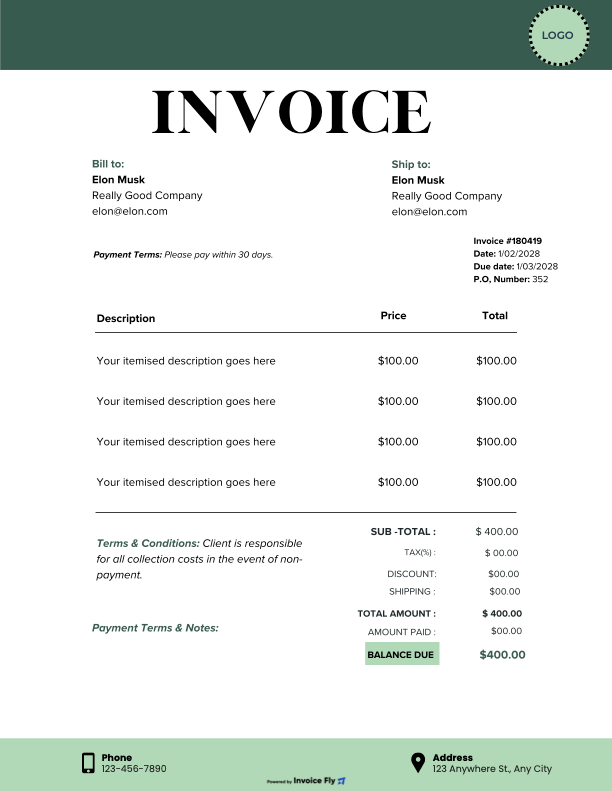
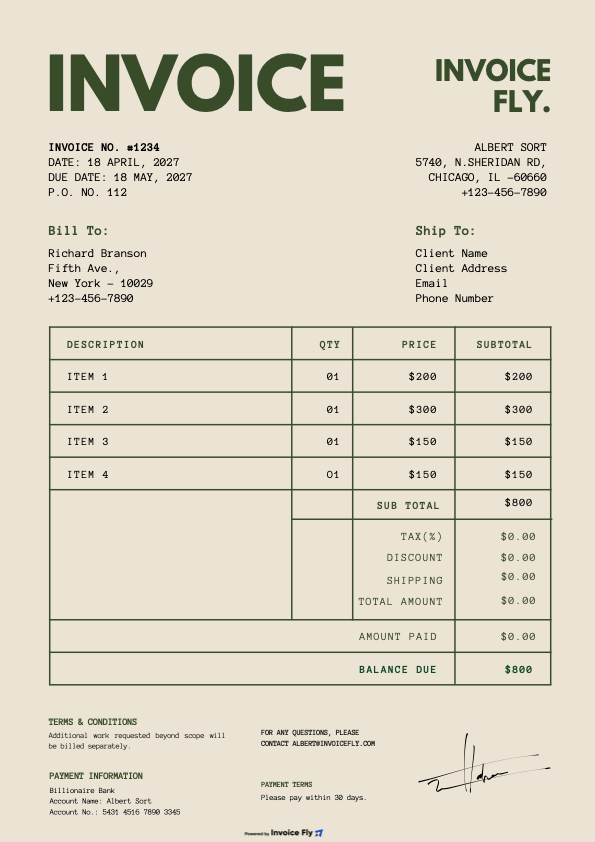
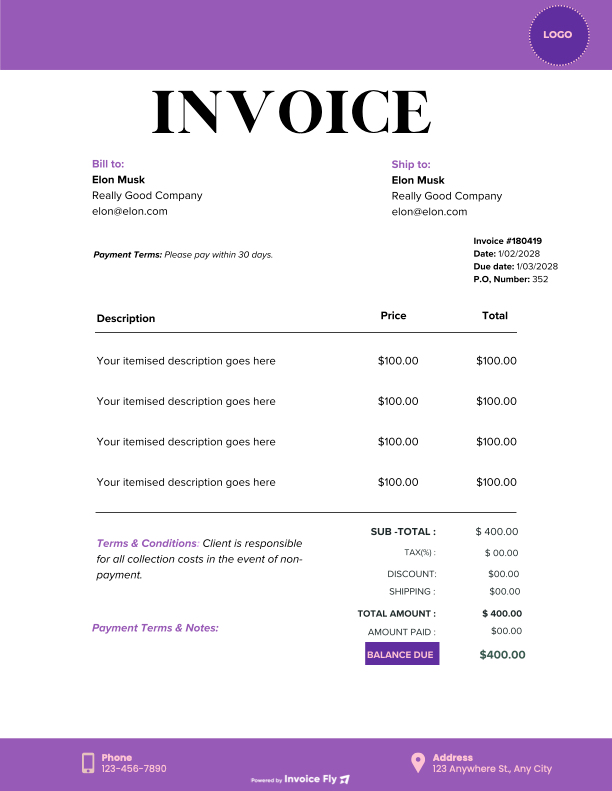
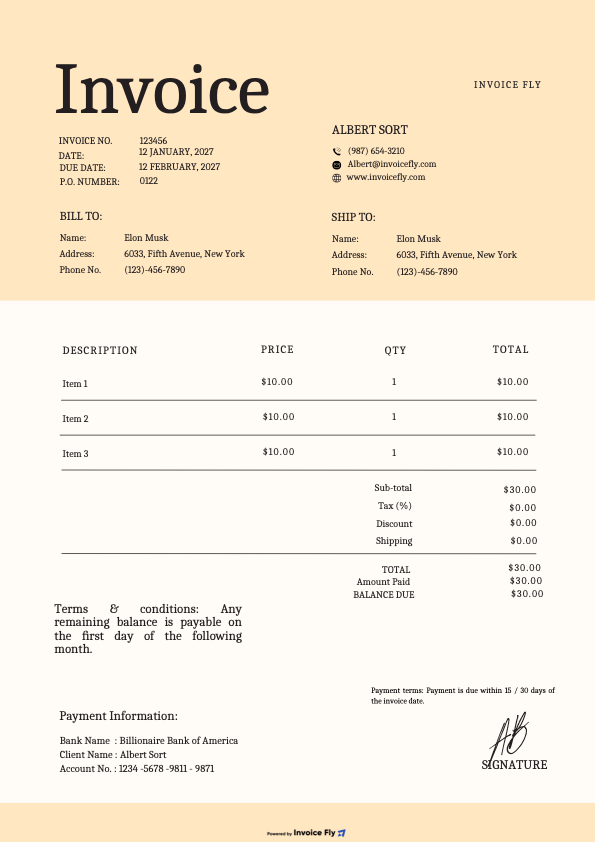
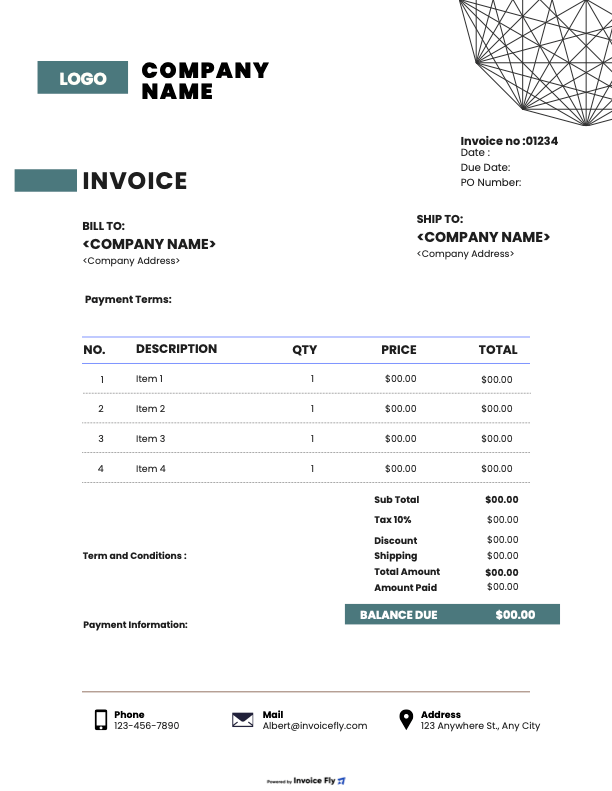
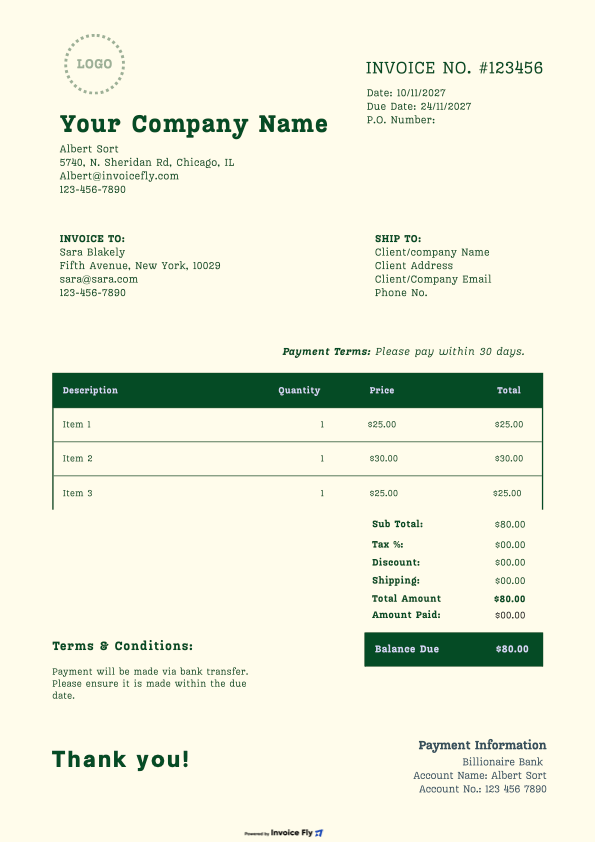
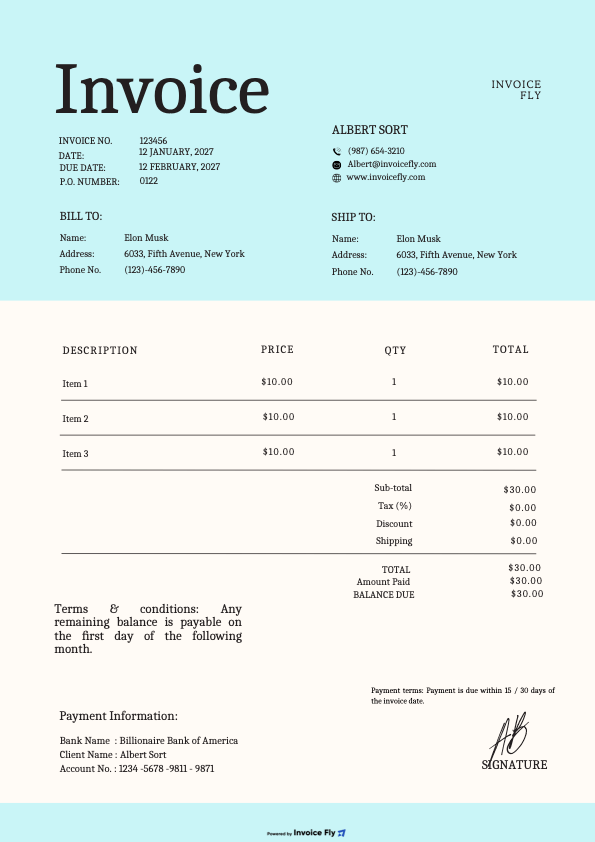
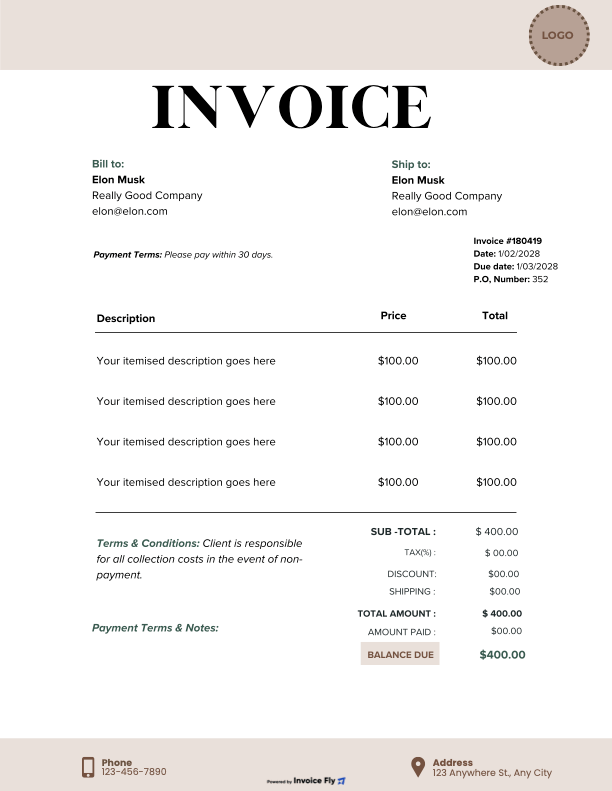
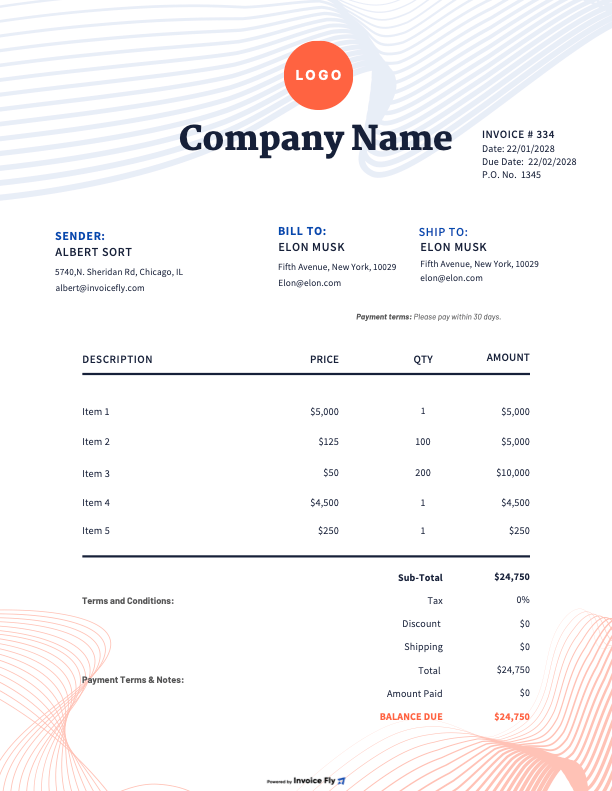
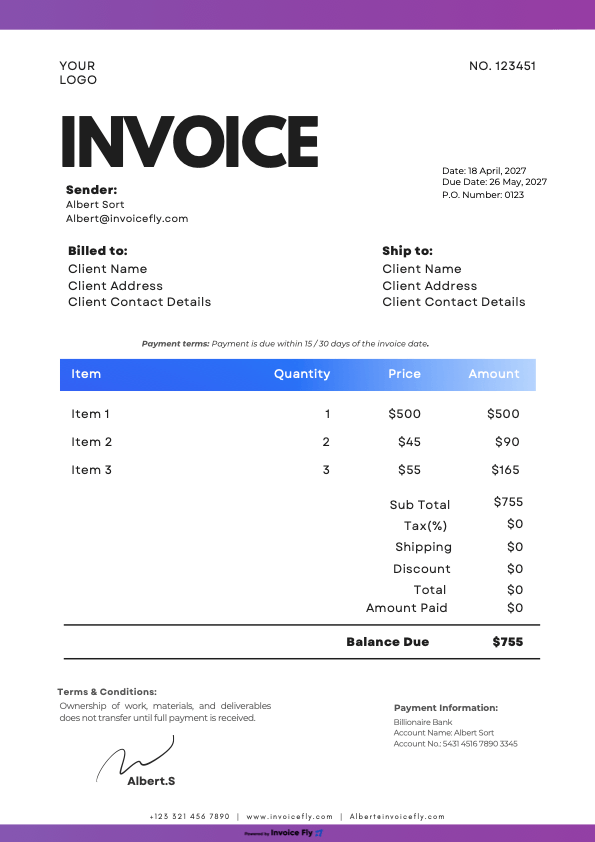
Free Estimate Template Word

Edit the wording without rebuilding the layout. Skip the hassle of formatting estimates from scratch or fixing layouts in Word. Download a free word estimate template below, make it your own, and send a polished, professional estimate to your customers.

Colors

Styles

Formats

Industry

Why Should I Use an Estimate Template Word?

A Word estimate template gives you a professional, consistent document in minutes, so you spend your time on the job and not on formatting. Here is what you get:
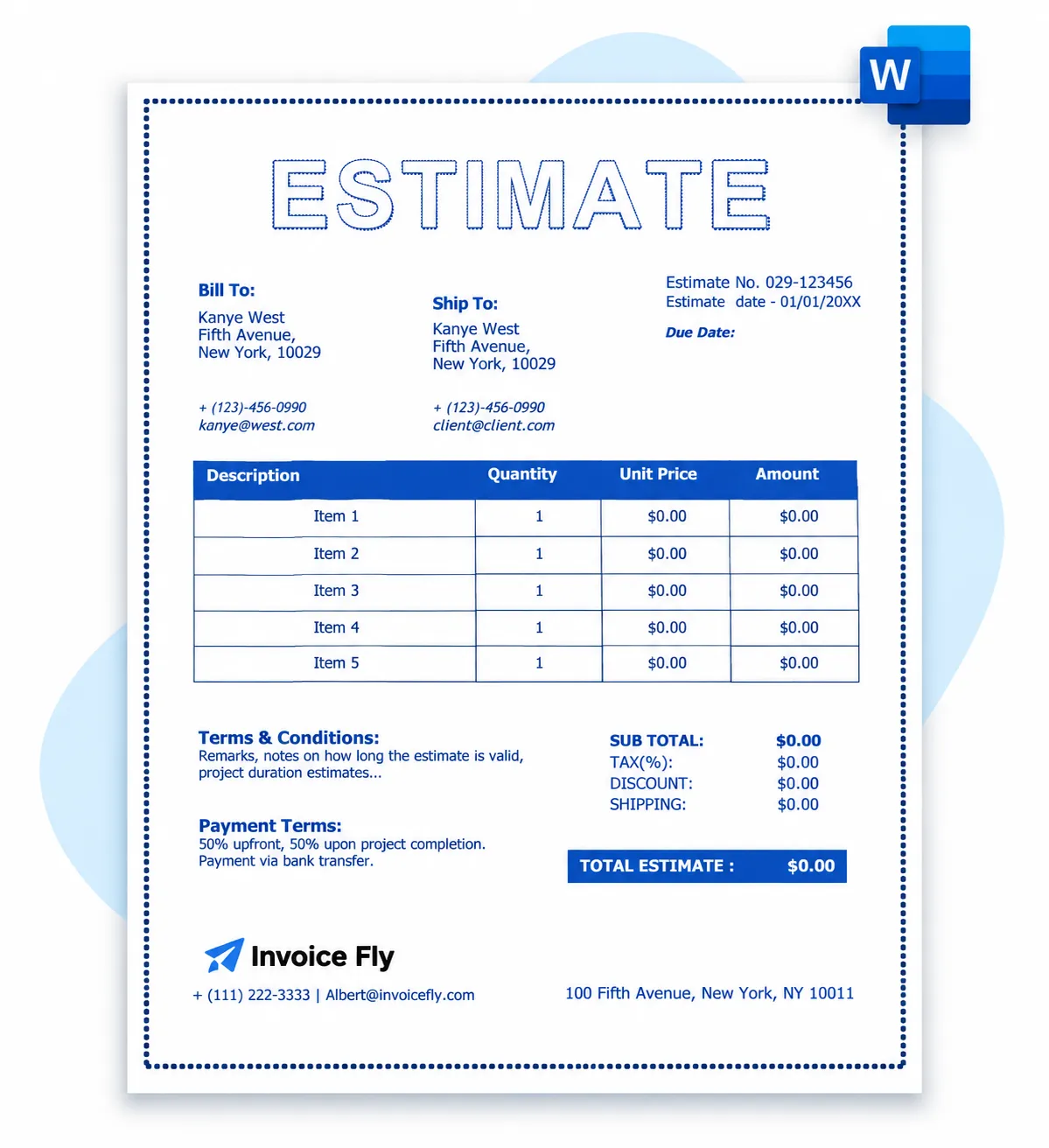
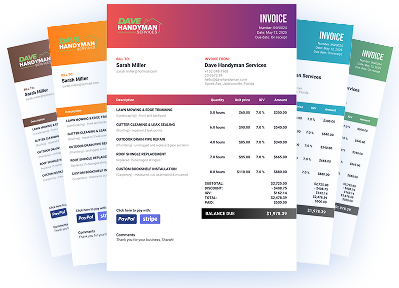
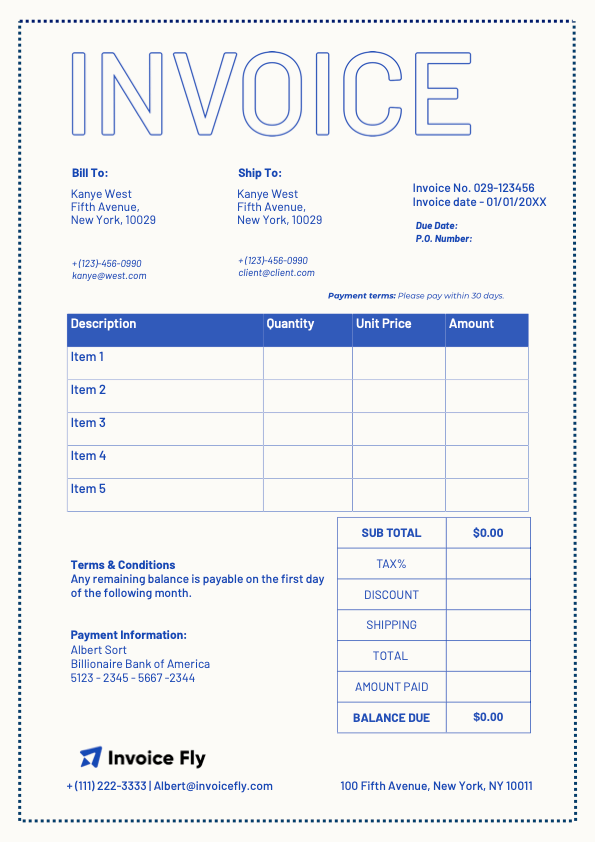
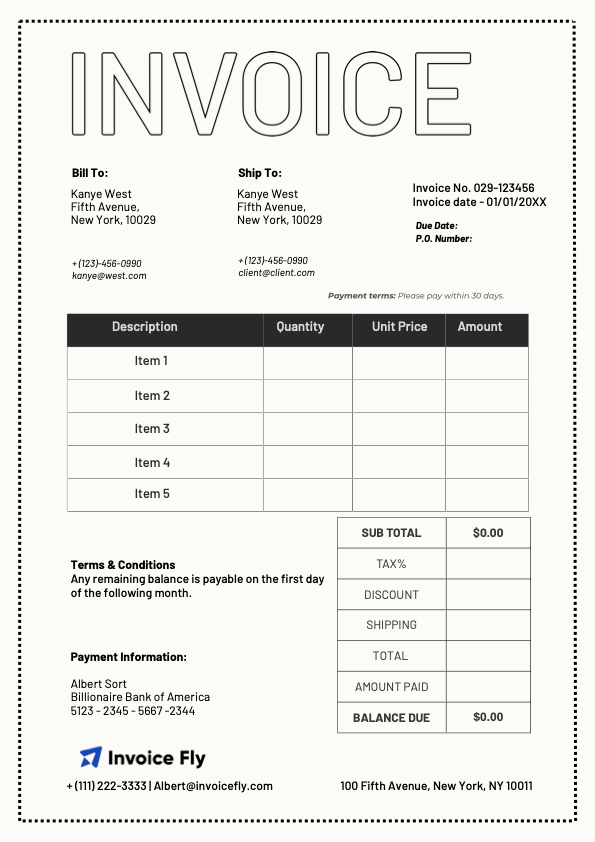
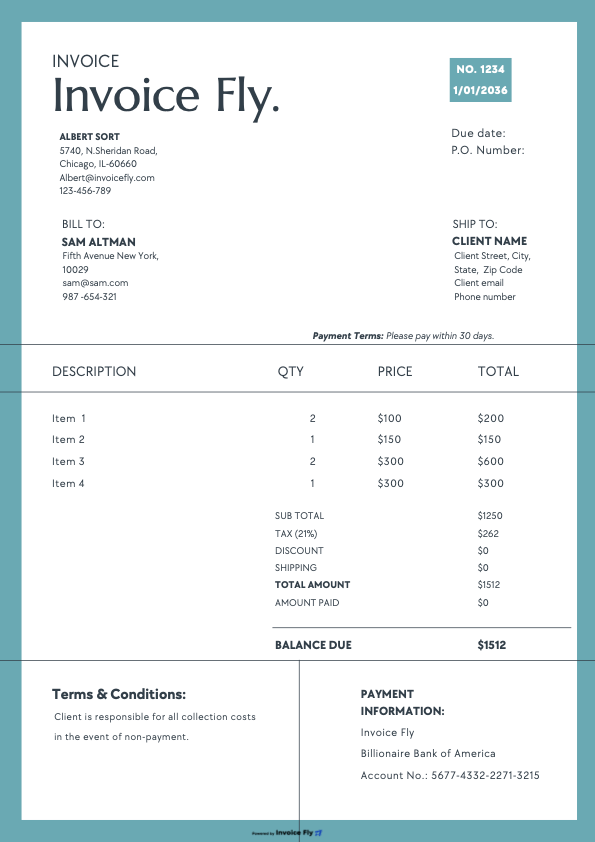
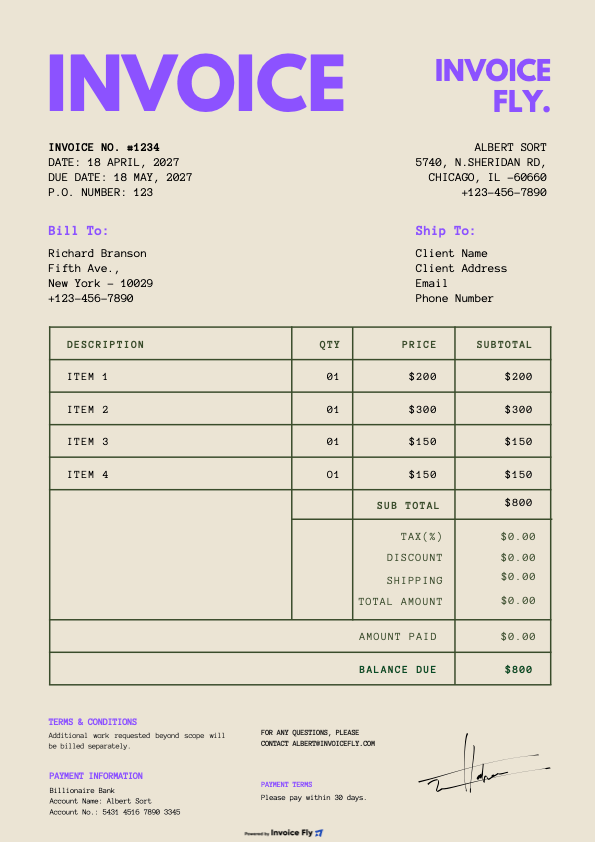
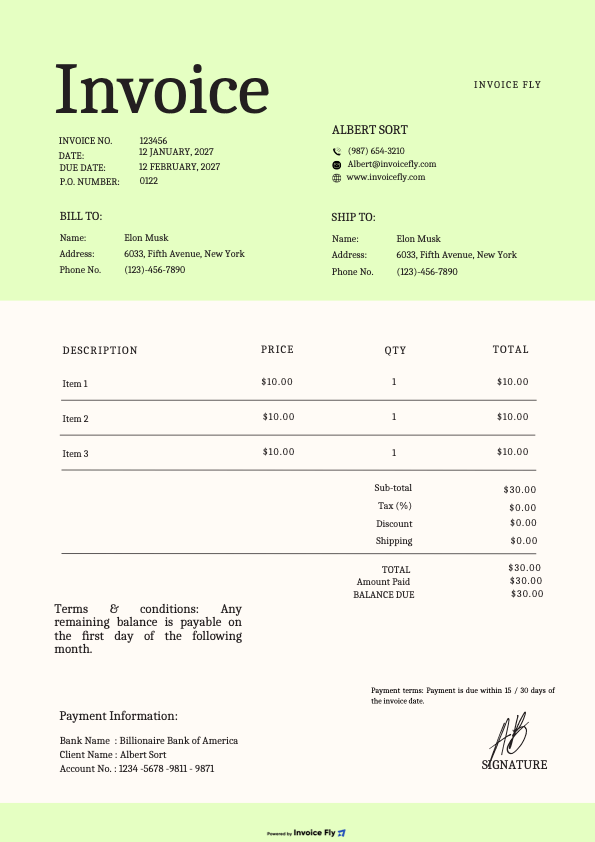
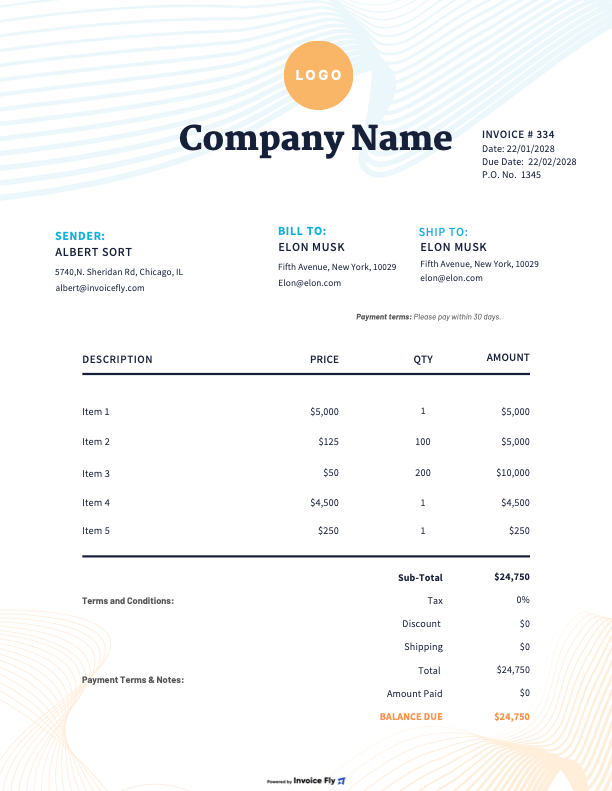
Blue estimate template in Microsoft Word with bill to and ship to details, estimate number and dates, itemized description, quantity, unit price and amount table, terms, payment terms and total estimate
  • A faster start

    Replace placeholder text instead of building a layout from scratch.

  • Fewer disputes

    Every estimate lists scope, quantities, prices, tax and terms in the same place, so clients see what they are agreeing to.

  • A branded look

    Add your logo, colors and contact details in a familiar editing tool.

  • Easy sharing

    Print it, or save it as a PDF and email it for approval.

  • Full control of the wording

    Edit line items, payment terms and notes to match each job.

  • A path to growth

    When you outgrow documents, move the same estimate into the Invoice Fly app.

What’s Included in an Estimate Template Word?

A free estimate template Word document should include seven essential elements. Whether you’re preparing a construction estimate, pricing a painting project, or quoting auto repairs, Invoice Fly gives you an editable format to customize in Microsoft Word.

  1. Business Information

    Add your business name, logo, address, email, and phone number.

  2. Client Details

    Include the customer’s name or company name, address, email, and phone number.

  3. Estimate Number and Dates

    Add a unique estimate number, issue date, and expiration date.

  4. Itemized Line Items

    Include a description, quantity, unit price, and line total for each service or product.

  5. Estimated Totals

    Show the subtotal, discounts, applicable taxes, and final estimated cost.

  6. Terms and Notes

    Include payment terms, deposit requirements, what’s included, what’s excluded, and additional notes.

  7. Client Approval

    Leave space for the client’s name, signature, and date to confirm acceptance.

Optional details can include a purchase order (PO) number, project name, and additional terms and conditions.
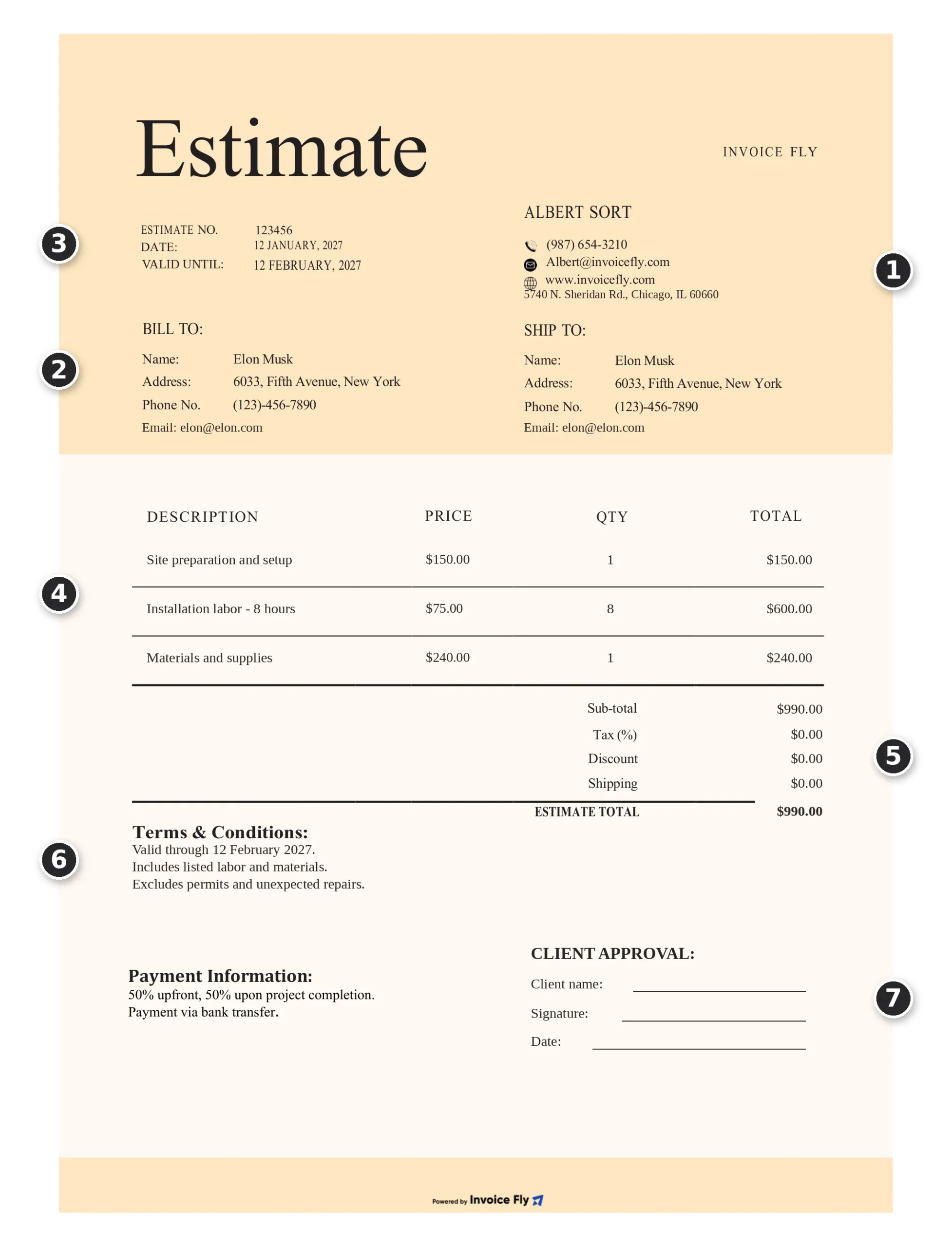
Word estimate template with numbered elements: 1 business information, 2 client details, 3 estimate number and dates, 4 itemized line items, 5 estimated totals, 6 terms and payment notes, 7 client approval

Best Practices for Creating an Estimate Template for Word
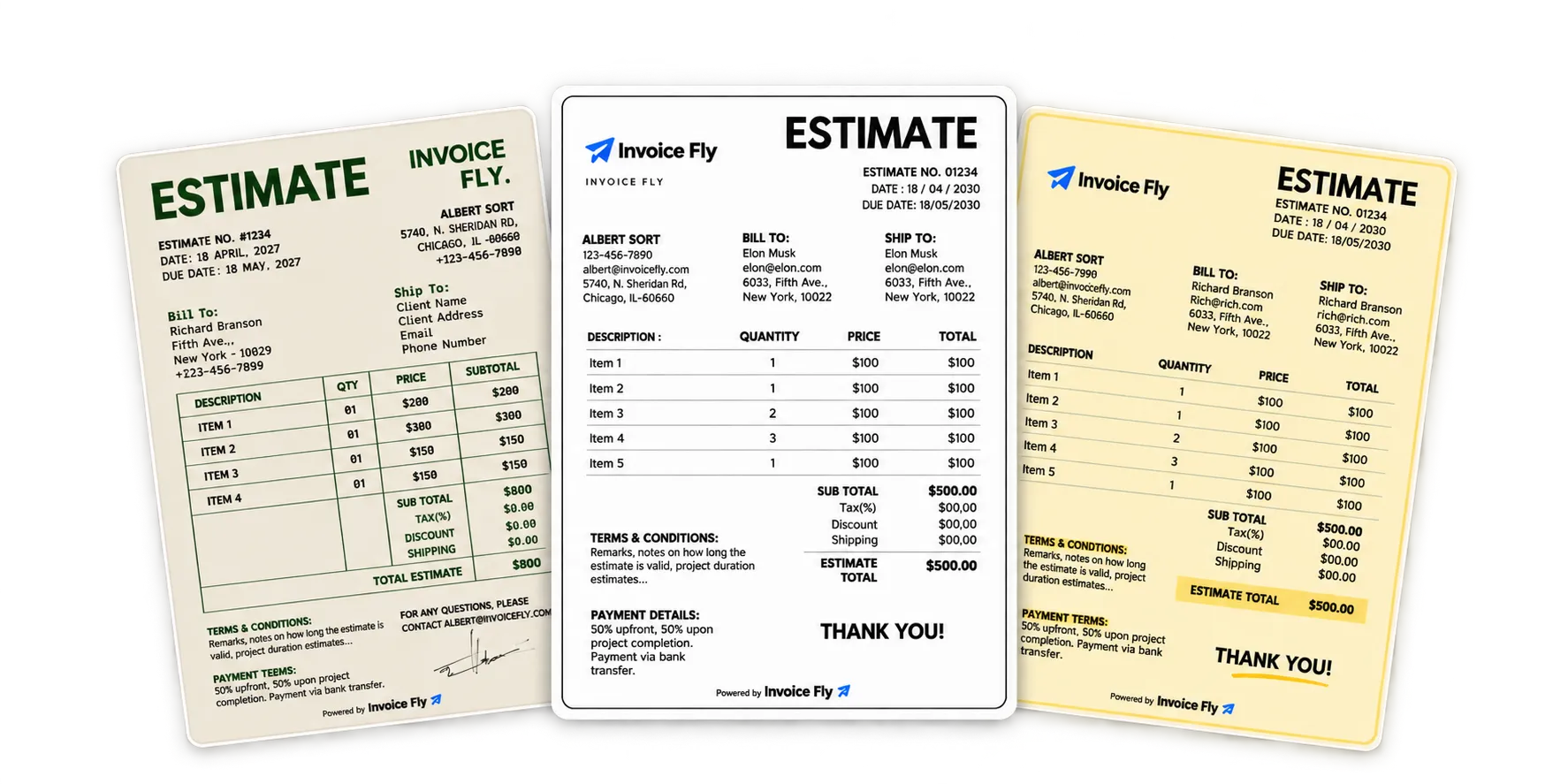
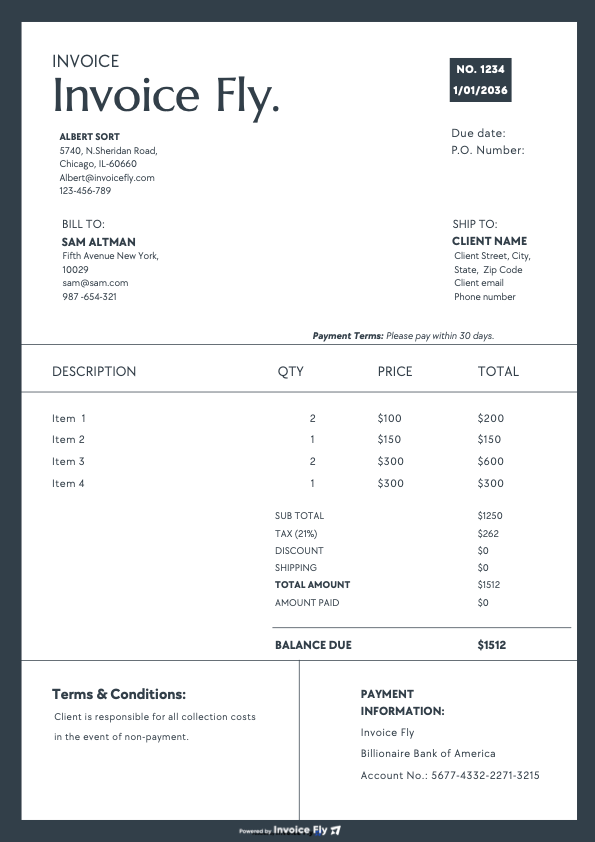
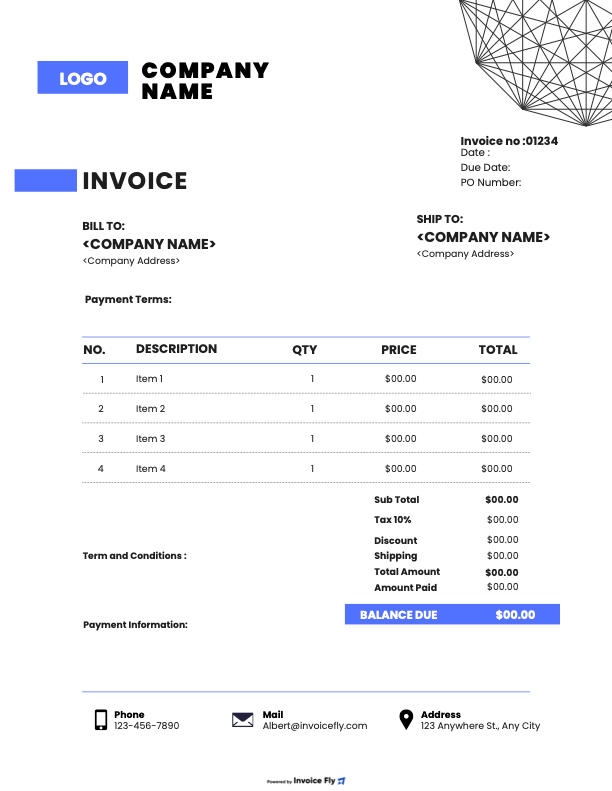
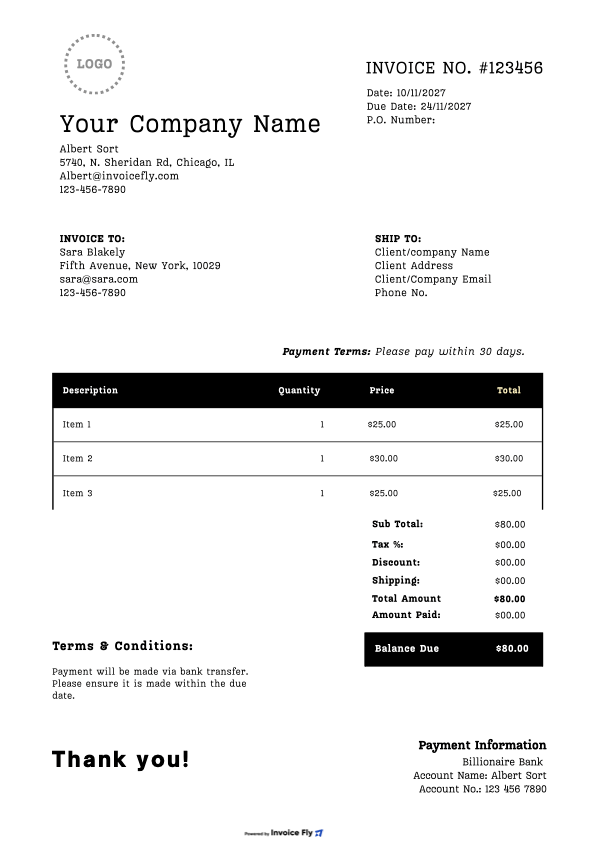
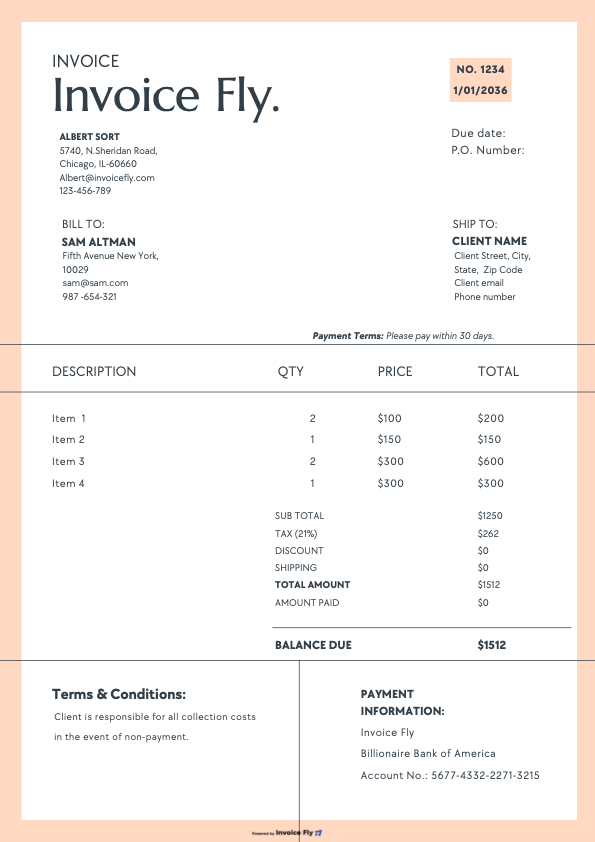
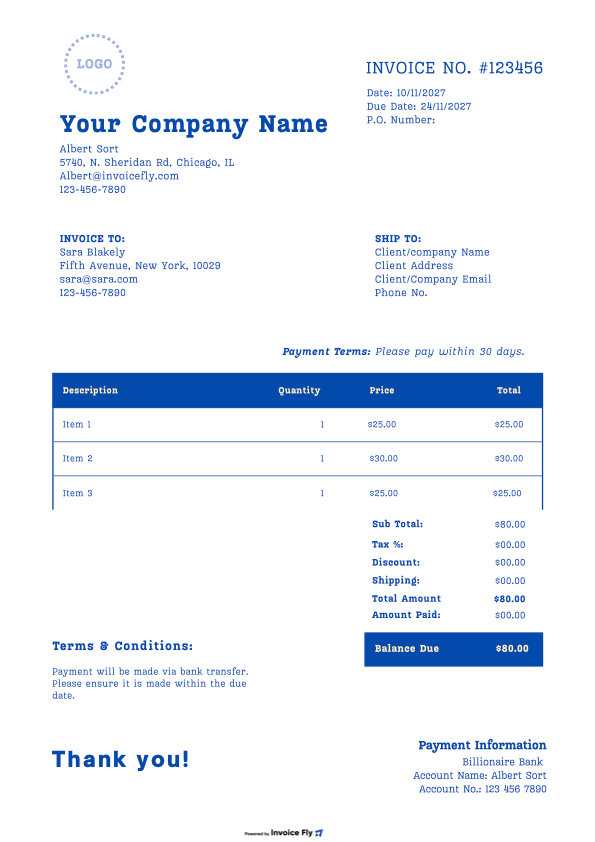
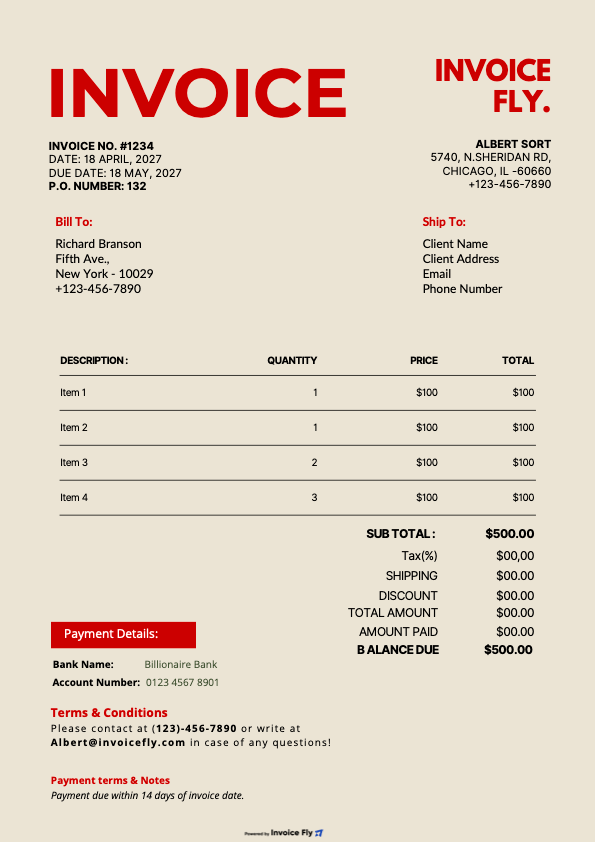
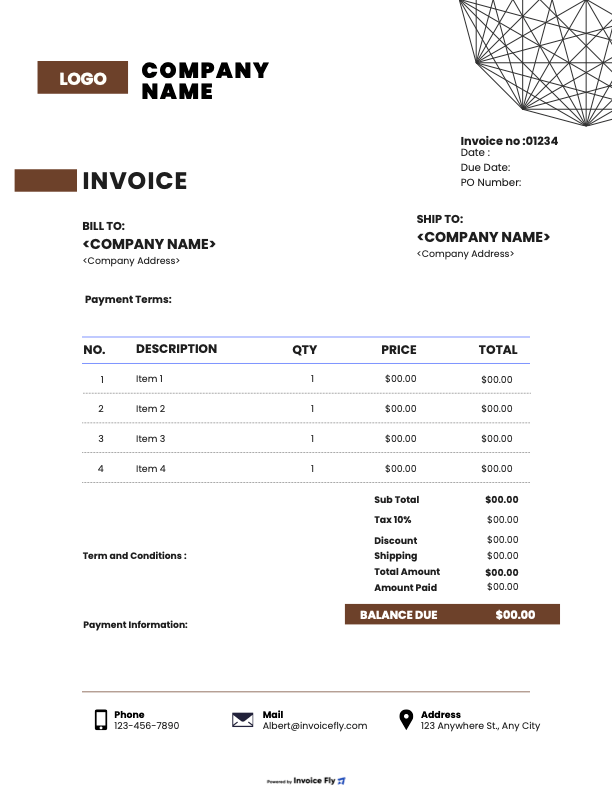
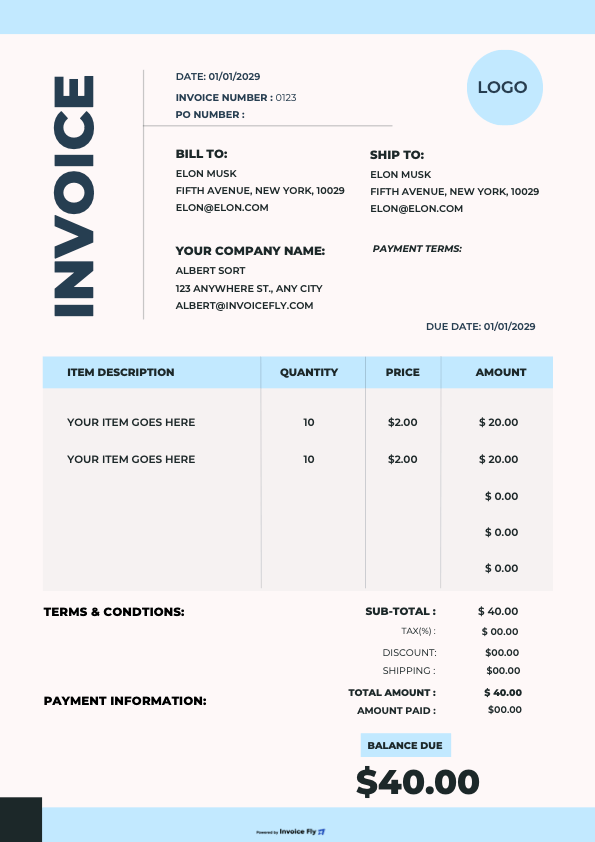
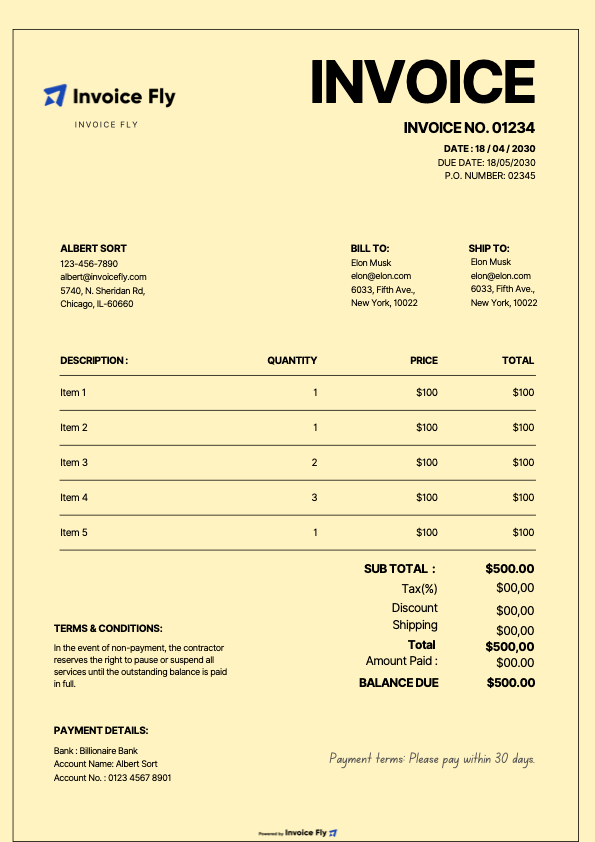
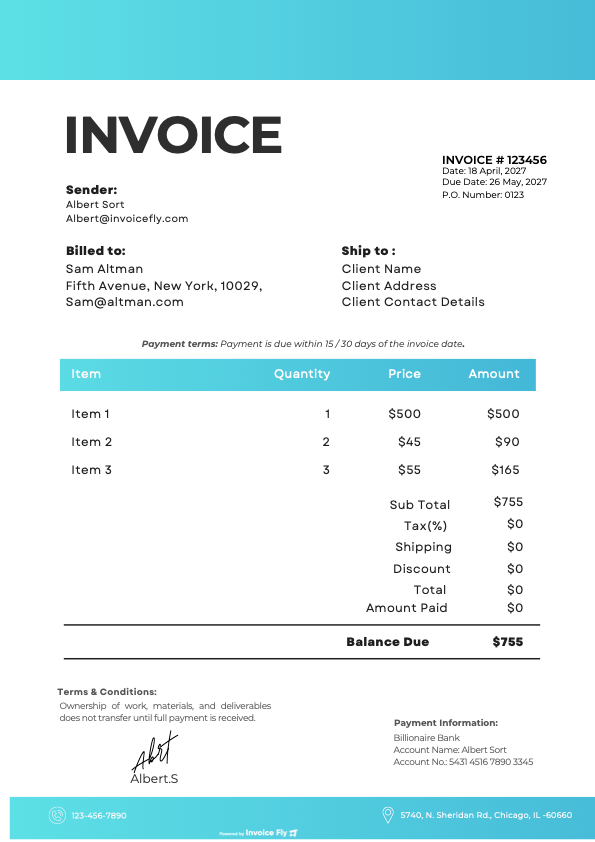
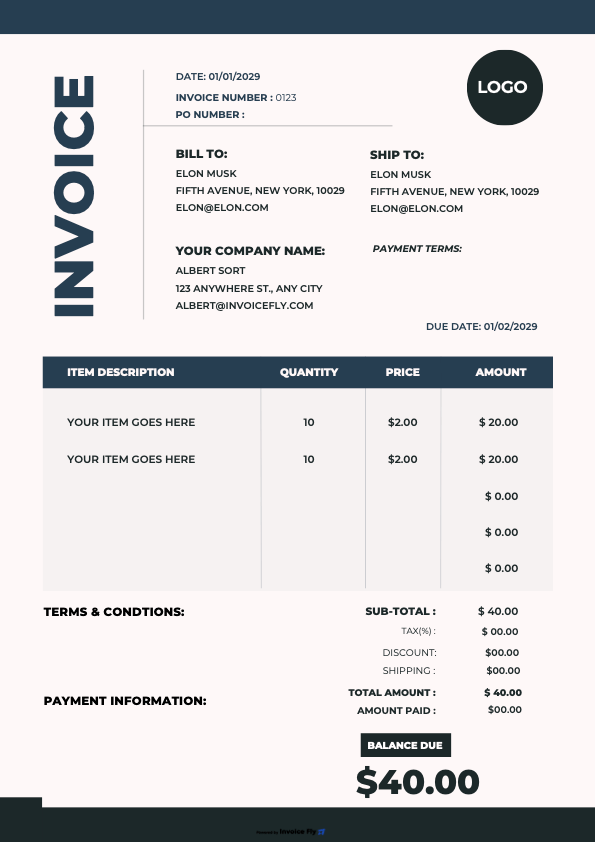
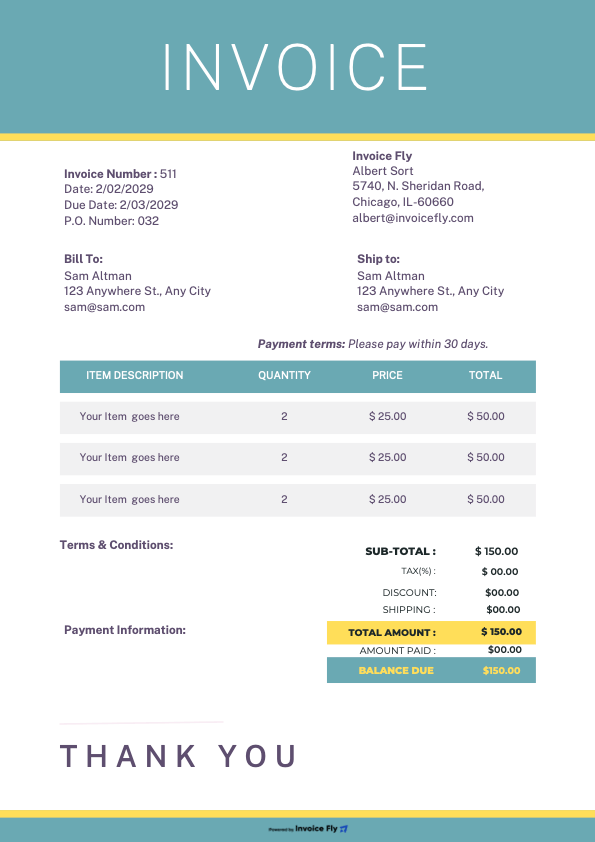
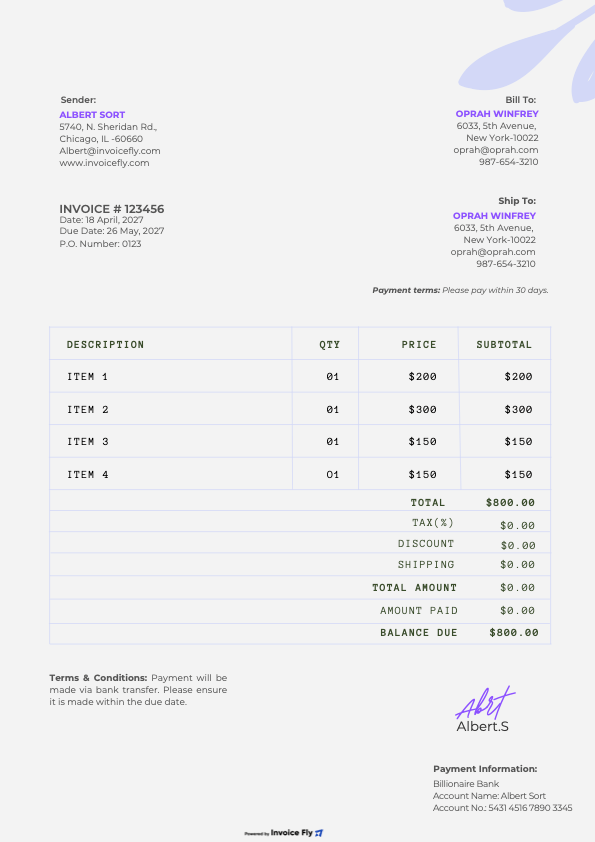
Three Word estimate template designs with itemized descriptions, quantities, prices, subtotal, tax, discount, shipping, estimate total, terms and conditions and payment terms
  1. Make Every Cost Easy to Follow

    Use separate line items for each service, product, or task. Include quantities, unit prices, and amounts so customers can see how the estimated total adds up. Double-check your calculations whenever you change a price or item in your Word estimate template.

  2. Set Clear Expectations Before Work Begins

    Explain what’s included in the job, what isn’t, and which conditions could affect the final price. Include important assumptions, deposit requirements, and how additional work will be approved. Clear terms help prevent misunderstandings once the project gets underway.

  3. Keep Your Word Estimate Easy to Customize

    Work within Word’s existing tables instead of using spaces to align text and prices. Add or remove rows as needed, replace the sample logo without stretching it, and keep descriptions, quantities, and prices neatly organized. Check page breaks and totals before sending your estimate to customers.

Create Your Estimate Online with Our Free Estimate Generator

Prefer creating an estimate without editing a Word document? Use Invoice Fly’s free online estimate maker. Enter your job details and prices, let automatic calculations handle subtotals and totals, and download your finished estimate as a PDF, ready to share with customers.

Try Our Online Estimate Generator
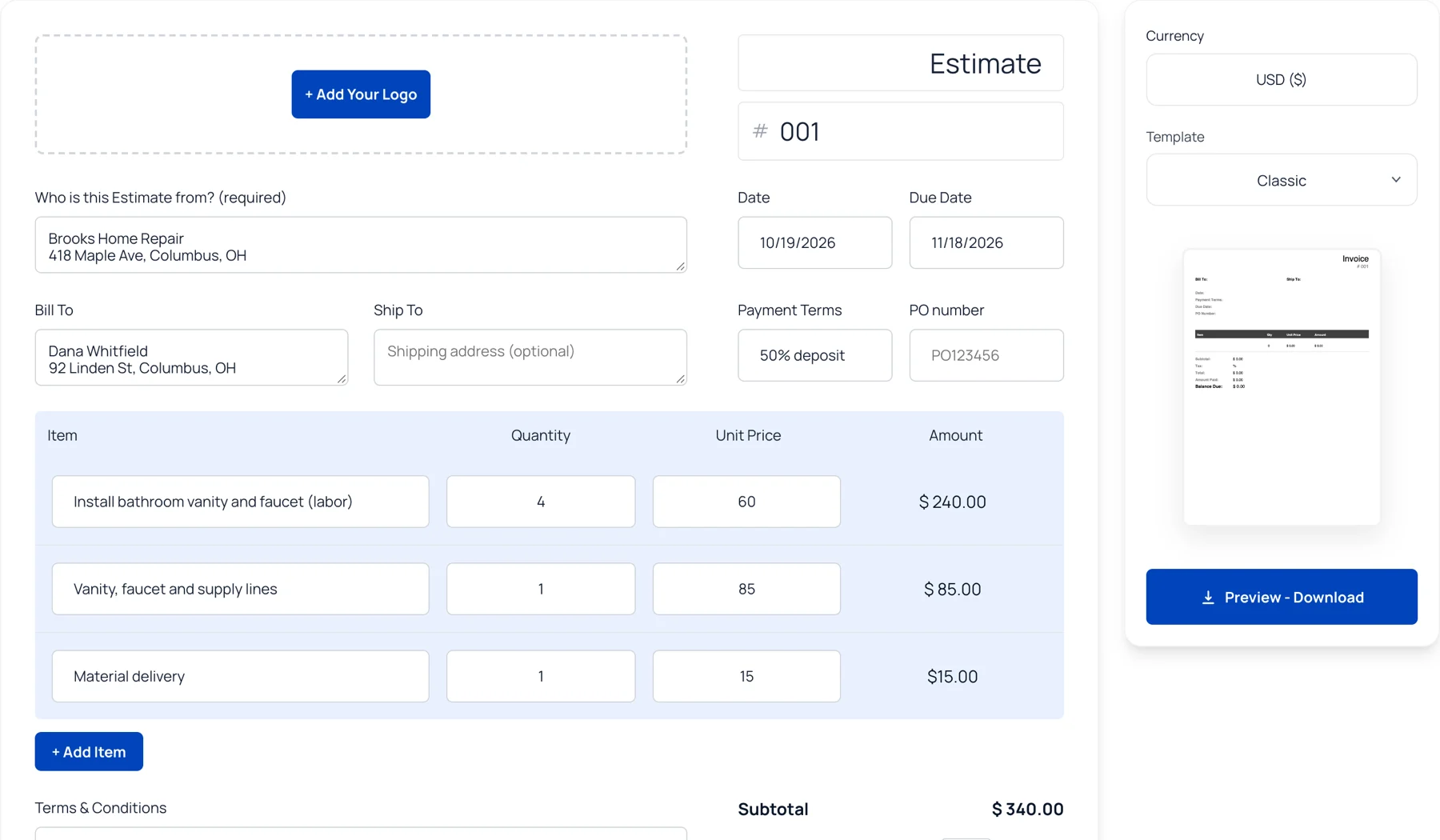

Invoice Fly free online estimate generator with line items, totals and template options

FAQs About Our Estimate Template Word

Absolutely! Invoice Fly's free estimate template Word files are ideal for small businesses, independent contractors, freelancers, and service providers. Customize your document for different jobs, prepare customer quotes, and keep your pricing consistent without creating a new layout every time.

Whether you're quoting a construction project, painting job, or auto repair, a ready-made estimate template helps you present costs professionally and gives customers a clear breakdown before they approve the work.

Downloading an estimate template in Word is simple:

  1. Browse the available estimate templates and choose a design that suits your business.

  2. Select the Word download option.

  3. Open the downloaded file in Microsoft Word or another DOCX-compatible editor.

  4. Replace the placeholder text with your own information.

  5. Save a separate copy for each customer or project.

Start with an Invoice Fly estimate template and customize it in Microsoft Word. Add your logo, choose your preferred fonts and colors, and adjust the layout to match your business branding.

Next, organize your project details, descriptions, and pricing into a clear, easy-to-read document. Use consistent headings, align your prices, and leave enough space between sections so customers can review the estimate without confusion.

Before sending it, check the calculations, payment terms, and page layout. You can also use Invoice Fly's free online estimate generator to calculate subtotals and totals automatically.

To calculate your estimate total in Word, multiply each item's quantity by its unit price, then add the line amounts to get your subtotal.

Next, account for any discounts, applicable sales tax, and additional charges to calculate the final estimated cost. Double-check every figure after editing your document.

Word estimate templates don't necessarily recalculate totals automatically when you change quantities or prices. Unless your document contains working formula fields, you'll need to update the calculations manually. For automatic calculations, try Invoice Fly's free online estimate maker.

Yes! Adding your logo is an easy way to make your estimate look more professional and reflect your business branding.

Open your DOCX file in Microsoft Word, select Insert → Pictures, and choose your logo. Resize it using the corner handles to maintain its proportions, then position it in the header or business information section.

You can also adjust the fonts, colors, and headings to match your brand. Before sending the estimate, check that your logo doesn't overlap the text or push other sections onto another page.

Need extra space for additional services or materials? You can easily add rows to the itemized section of your estimate.

In Microsoft Word, click inside the estimate table, open Table Layout, and select Insert Below or Insert Above. You can also click inside the last cell of the table and press Tab to add another row.

Keep the new rows consistent with the existing formatting. After adding items, update the subtotal, taxes, and estimated total, then check the page layout before sending your estimate.

Once you've finished editing your estimate, you can save it as a PDF directly from Microsoft Word.

  1. Open your completed estimate.

  2. Select File → Save As or File → Export.

  3. Choose PDF as the file format.

  4. Select where you'd like to save the document.

  5. Open the saved PDF and review it before sharing.

Check that your customer details, project description, pricing, and page breaks are correct. A PDF keeps your finished estimate's formatting consistent, making it easier to email, print, and share with customers.

Both formats work well for estimates, but they serve different purposes.

  • Word: Best for editing descriptions, project scope, terms, and document layouts. It's a good choice when you want a professional estimate that's easy to customize and print.

  • Excel: Better suited to estimates with multiple line items, quantities, rates, and spreadsheet calculations.

Choose Word when presentation and document editing are your priorities. Choose Excel when you need more flexibility with calculations and cost breakdowns. You can also save either completed format as a PDF to share with customers.

Yes! A Word estimate template can be customized for different industries and types of jobs.

For example, a free construction estimate template Word document can help contractors quote labor, building materials, and equipment costs. A painting estimate template Word can cover surface preparation, paint, labor, and additional coats. An auto repair estimate template Word can be used to list vehicle repairs, replacement parts, diagnostics, and labor charges.

Adjust the descriptions, pricing, and terms to match the work you're quoting and give each customer a clear estimate.

Yes! You can use an approved estimate as the starting point for preparing a separate invoice. This saves time because you already have the agreed project scope, services, and pricing.

Before sending the invoice:

  • Confirm which services or products were actually provided.

  • Update quantities and prices if the approved scope changed.

  • Include any additional work authorized by the customer.

  • Apply relevant deposits, discounts, and taxes.

  • Add a new invoice number, issue date, and payment due date.

With the Invoice Fly app, you can convert approved estimates into invoices and send them directly to your clients without entering all the details again.

An estimated invoice is a preliminary document that shows the expected cost of products or services before the work is completed. It gives customers an idea of what they'll pay, based on the proposed scope, quantities, rates, and applicable taxes.

An estimate is not the same as a final invoice. It presents the expected cost, while an invoice requests payment for completed work or agreed charges. Businesses often use an estimate first to get customer approval before moving forward with a project.

You can create an estimate using one of Invoice Fly's free blank estimate templates in Word or save time with our free online estimate generator. To use a Word estimate template, download your preferred DOCX design, replace the placeholder text, and customize it for your project.

An estimate and a quote both communicate the expected cost of a job, but they offer different levels of pricing certainty.

  • Estimate: Provides an approximate price based on the expected work, materials, and labor. The final cost may change if the project requirements or scope change.

  • Quote: Offers a proposed price for a clearly defined scope of work. Once accepted, it generally establishes the agreed price and terms, subject to the conditions of the agreement.

  • Invoice: Requests payment for work completed or charges that have become due.

For example, a contractor might provide an estimate for a kitchen renovation before all project details are finalized. After reviewing the scope and costs with the customer, they can issue a more specific quote. Once the work is completed, they send an invoice for payment.

Using the right document at each stage helps keep pricing, customer expectations, and payments organized.

Get Better at Estimating with Invoice Fly Academy

Learn how to prepare professional estimates, price your jobs, manage customer quotes, and grow your business with practical guides from Invoice Fly Academy.

Invoice Fly app

Turn Your Estimates into Invoices with Invoice Fly

Customer approved your estimate? Use the Invoice Fly app to turn it into a professional invoice and send it directly to your client without entering all the details again. Keep your customer information, estimates, and invoices organized in one place.