- Home
- »
- Free Resources for Small Businesses
- »
- Free Business Tools
- »
- Purchase order
Purchase Order
Create a professional purchase order in minutes. Add your supplier, products, prices, PO number, delivery details, and payment terms, then download your completed order as a PDF.
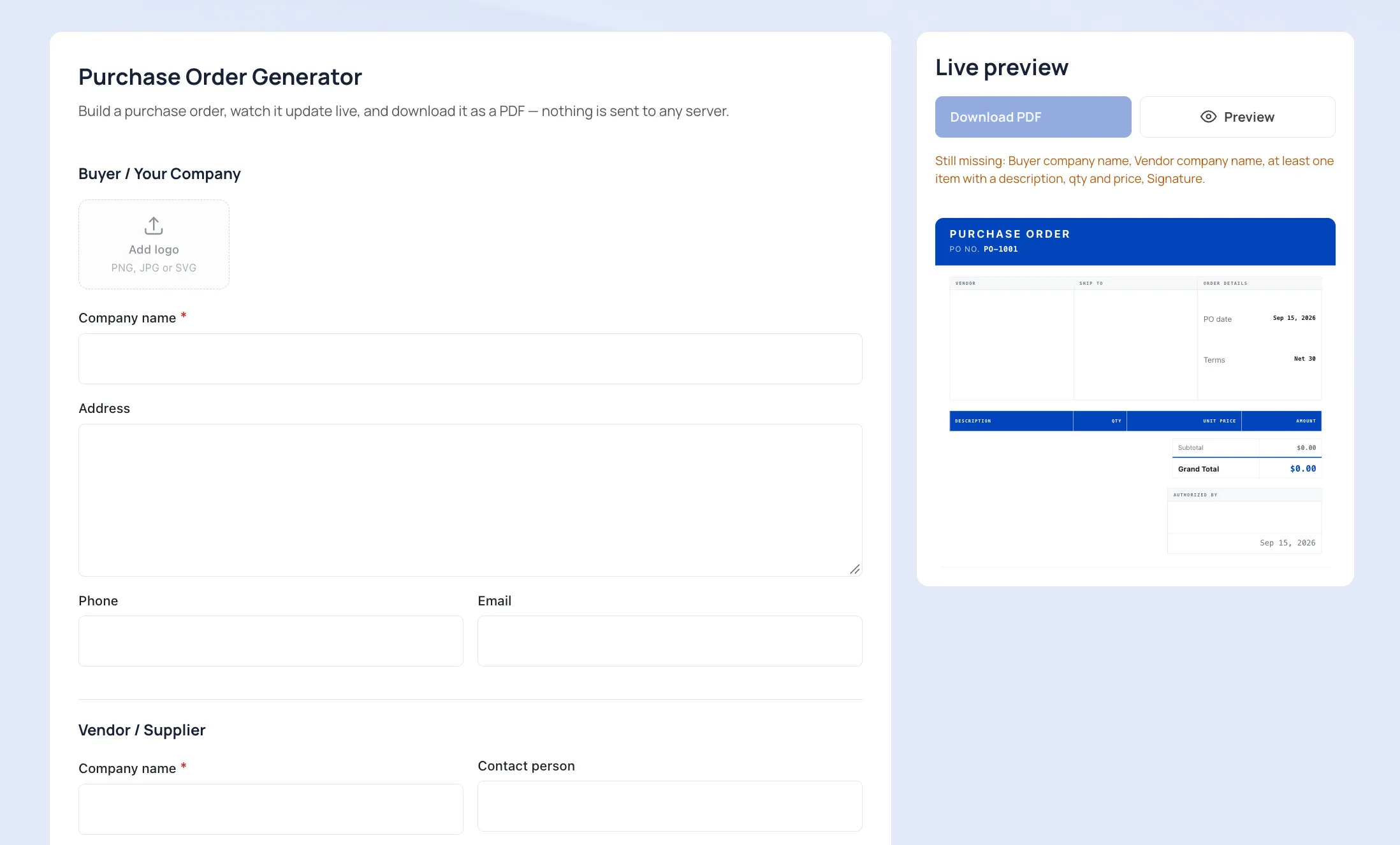
Purchase Order Generator
Build a purchase order, watch it update live, and download it as a PDF — nothing is sent to any server.
Buyer / Your Company
Vendor / Supplier
Ship To
Order Details
Items
| SKU | Description | Qty | Unit price | Line total | |
|---|---|---|---|---|---|
| $0.00 |
- Subtotal
- $0.00
- Tax (0%)
- $0.00
- Shipping
- $0.00
- Total
- $0.00
Notes, Terms & Conditions
Authorization
Invoice Fly provides this tool to help you create purchase orders faster and is not a substitute for professional legal or accounting advice. Invoice Fly is not responsible for errors, omissions, or any consequences arising from the use of this document.
Create a Purchase Order in a Few Simple Steps
1
Add Your Business Details
email, and logo.
2
Add Your Supplier Details
Add the supplier or vendor you’re ordering from, including their contact information.
3
Add Your PO Number and Date
purchase order date.
4
Add Your Products or Services
Enter each item, SKU, description, quantity, and unit price. Add as many items as you need.
7
Review and Download
Check your purchase order example in the live preview, then download your finished document as a PDF.
5
Add Delivery and Payment Details
Include the expected delivery date, payment terms, shipping method, tax, and other order details.
4
Add Your Products or Services
Enter each item, SKU, description, quantity, and unit price. Add as many items as you need.
5
Add Delivery and Payment Details
Include the expected delivery date, payment terms, shipping method, tax, and other order details.
6
Add Notes and Terms
Add any additional instructions, terms and conditions, or authorization details.
7
Review and Download
Check your purchase order example in the live preview, then download your finished document as a PDF.
What Should a Purchase Order Include?
A professional purchase order form should make the order easy to understand for both you and your supplier.
-
1
Company Details
Include the buyer’s business name and contact information.
-
2
Supplier Details
Add the supplier or vendor receiving the order.
-
3
PO Number
Give every order a unique PO number so it’s easy to track.
-
4
Issue Date
Add the date the purchase order was created.
-
5
Products and Quantities
List exactly what you’re ordering, including descriptions, SKUs, and quantities.
-
6
Prices and Totals
Include the agreed unit prices, tax, shipping, and final total.
-
7
Delivery and Payment Terms
Specify when the order is expected and how it will be paid.
-
8
Notes and Terms
Add any additional instructions or terms your supplier needs to know.
This is a sample layout — customize the fields to match your business.
Create Purchase Orders Effortlessly With the Invoice Fly App
Once you’ve created your purchase order, upgrade to the Invoice Fly app to create and manage your orders on the go. Use your phone to add PO numbers, update order details, and keep your purchase paperwork organized wherever you work.
The app also lets you create other essential business documents, including invoices, estimates, and receipts, so you can manage your everyday business paperwork from one place.
FAQs About Purchase Orders
A purchase order is a document a buyer sends to a supplier outlining the goods or services they want to purchase. It typically includes the items, quantities, prices, delivery details, and payment terms. Once accepted by the supplier, it provides a clear record of what was ordered.
A purchase order number, or PO number, is a unique number assigned to a purchase order. It helps businesses identify, track, and reference individual orders.
Create a purchase order by adding your business and supplier details, PO number, order date, products or services, quantities, prices, delivery details, and payment terms. With the Invoice Fly purchase order generator, you can enter these details, review your order, and download it as a PDF.
A purchase order generally comes first. The buyer creates and sends the PO to the supplier, while the supplier typically sends an invoice after the order or services have been provided.
A purchase order should include the buyer and supplier details, PO number, order date, item descriptions, quantities, prices, taxes, delivery information, and payment terms. You can also include shipping details, notes, and terms and conditions.
Common types include standard purchase orders, planned purchase orders, blanket purchase orders, and contract purchase orders. The type used depends on the nature and frequency of the purchases.
A purchase order example shows how a completed PO is structured, including the buyer and supplier information, PO number, products or services, quantities, pricing, delivery details, and payment terms.
The availability and pricing of a purchase order generator depends on the provider. With Invoice Fly, you can use the purchase order generator to create and download your purchase order directly from the tool.
More Tools for Your Business
 Open calculator
Timesheet Calculator
Track work hours and calculate total time.
 Open generator
Invoice Generator
Create professional invoices and get paid faster.
 Open template
Receipt Template
Create simple receipts for your business payments.
 Open generator
Purchase Order
Create clear orders for products, materials, and services.
 Open calculator
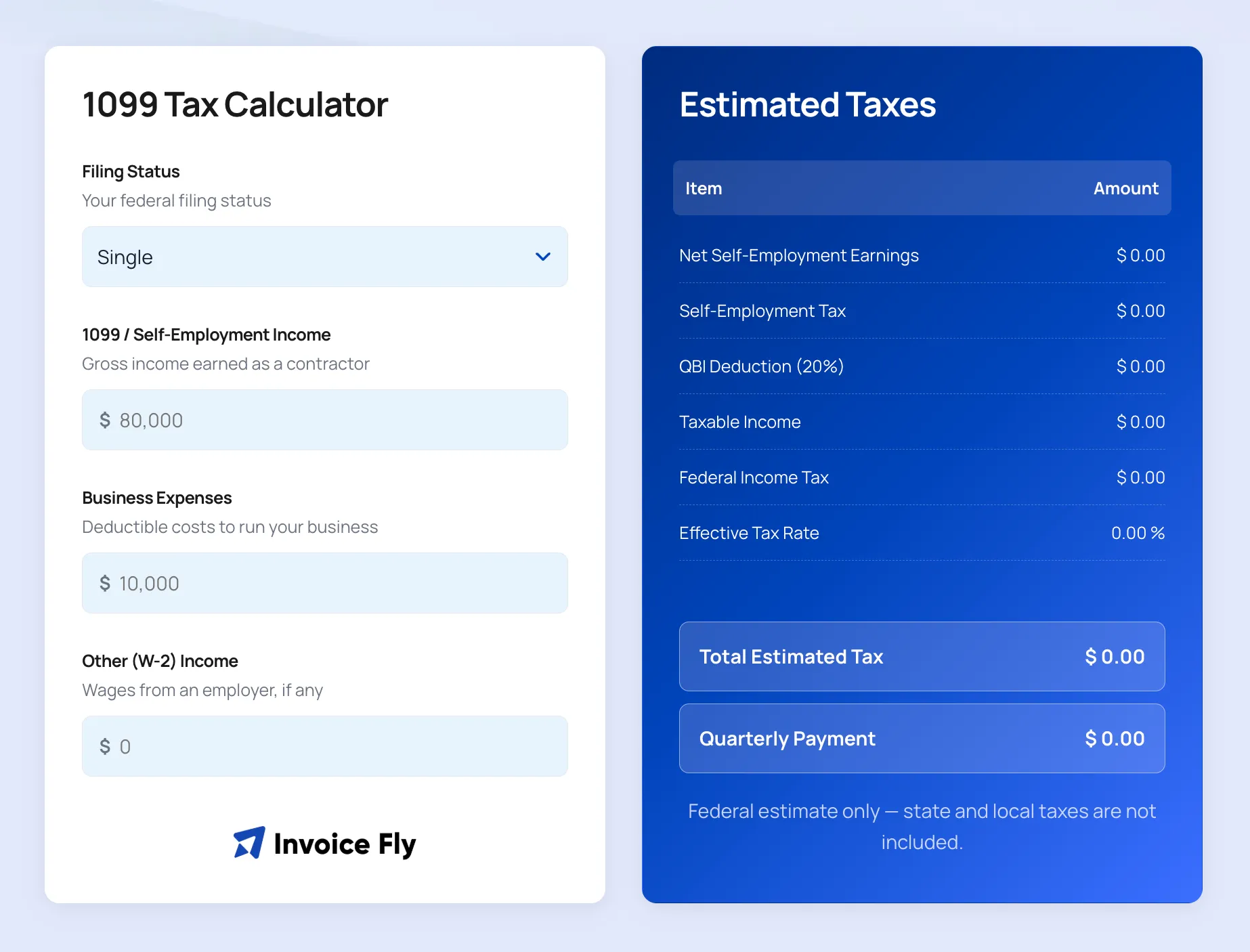
1099 Tax Calculator
Estimate your self-employment taxes on 1099 income.
 Open calculator
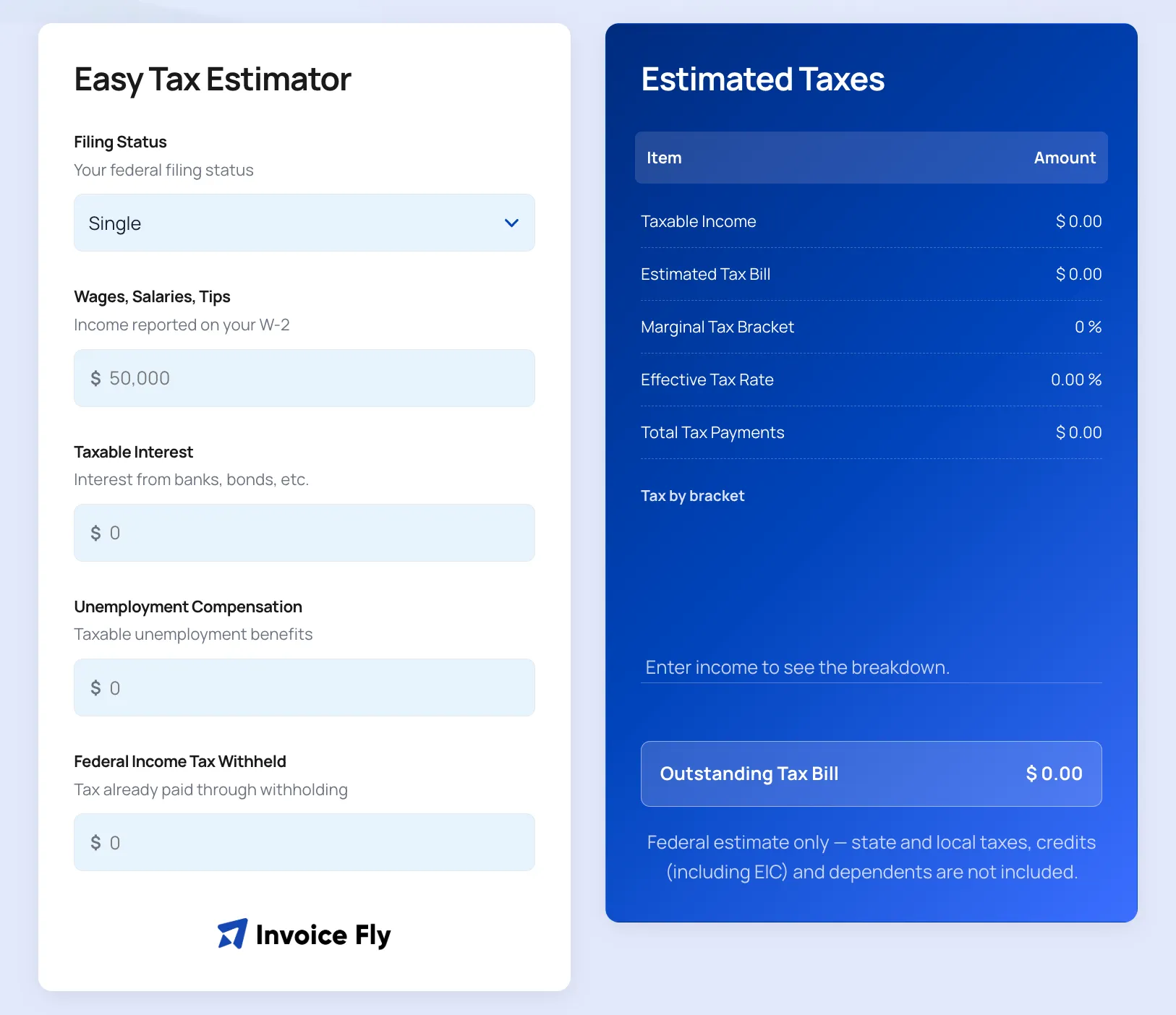
Estimated Tax Payment Calculator
Calculate your estimated quarterly tax payments.